
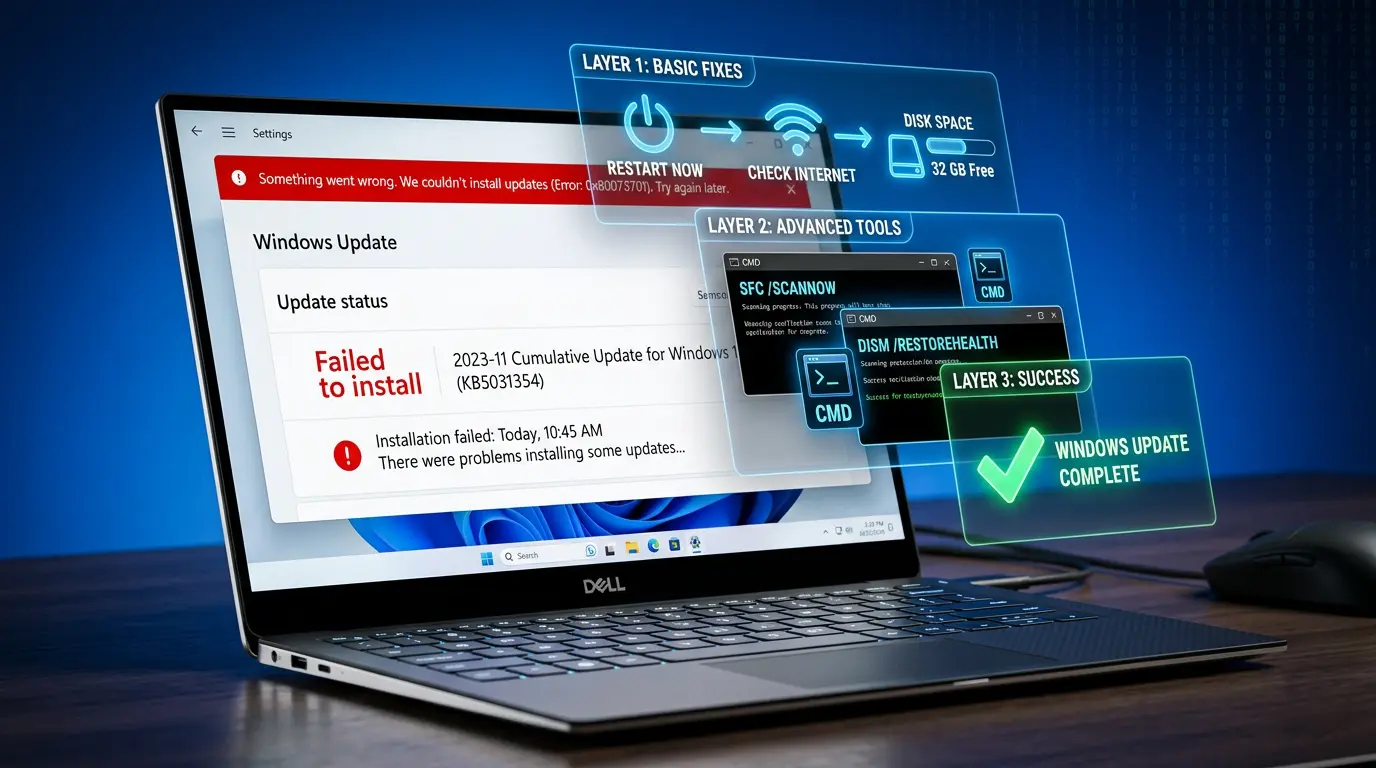
Windows updates are supposed to make your PC more secure, stable, and feature-rich. But sometimes, instead of a smooth update, you see messages like "Windows update failed to install", "We couldn't complete the updates", or strange error codes such as 0x800f0831, 0x80070005, 0x80070057, or 0x800f0922.
If your Windows 11 or Windows 10 update keeps failing, don't panic. In most cases, the problem is caused by:
- Corrupted update files
- Temporary glitches in update services
- Damaged system files
- Not enough free space
- Conflicts with antivirus or firewall settings
This guide will show you simple, safe methods you can follow step by step to fix Windows 11/10 update failed errors at home – without needing deep technical knowledge.
1. Understand the Common Windows 11/10 Update Error Codes
You may see a code next to the "Windows update failed" message. You don't need to memorize them, but knowing the basics helps:
- 0x800f0831 – A required update package is missing or the servicing stack has problems.
- 0x80070005 – "Access denied" – usually caused by permissions or security software blocking the update.
- 0x80070057 – Corrupted files, wrong parameters, or disk-related issues.
- 0x800f0922 – Windows cannot connect properly to the update servers, or there's an issue with .NET Framework.
Generic messages like:
- "Windows update failed to install"
- "We couldn't complete the updates. Undoing changes…"
Even if your code is different, the fixes below work for most Windows 11 and Windows 10 update errors. The key is to follow the steps in order.
2. Start With Basic Checks (Do These First)
Before changing any system settings, always try the basic, low-risk fixes.
2.1 Check Your Internet Connection
A weak or unstable connection is a very common reason for update failures.
- Make sure you are connected to the internet.
- If possible, plug in a LAN cable (wired connection) instead of Wi‑Fi.
- Temporarily turn off VPNs or proxy services while you update.
- If you are on mobile hotspot, try a more stable network.
After that, try checking for updates again.
2.2 Restart Your PC
It sounds too simple, but a restart can fix temporary glitches in Windows Update services.
- Click Start → Power → Restart.
- After restart, go to Settings → Windows Update (or Update & Security on Windows 10) and check for updates again.
2.3 Free Up Disk Space on Drive C:
Windows needs enough free space to download and install updates, especially big feature updates.
- Open File Explorer → right‑click on C: → Properties → check free space.
- Try to keep at least 20 GB free, more if you are doing a major version upgrade.
- Use Storage Sense or Disk Cleanup to remove:
- Temporary files
- Recycle Bin items
- Old Windows update files
If space was low, free it up, then try updating again.
2.4 Temporarily Disable Third‑Party Antivirus
Security software sometimes blocks update components.
- Open your antivirus program (Avast, Kaspersky, Bitdefender, etc.).
- Turn off real‑time protection or put it into "gaming" or "silent" mode temporarily.
- Do not disable Windows Defender – only third‑party tools.
- Try Windows Update again.
- When finished, turn your antivirus back on.
If these basic checks don't fix the problem, move to the more targeted solutions below.
3. Use the Windows Update Troubleshooter
Windows includes a built‑in tool to detect and fix common update issues.
On Windows 11
- Open Settings.
- Go to System → Troubleshoot → Other troubleshooters.
- Look for Windows Update and click Run.
- Wait while it scans and applies automatic fixes.
- Restart your PC.
- Try checking for updates again.
On Windows 10
- Open Settings.
- Go to Update & Security → Troubleshoot → Additional troubleshooters.
- Click Windows Update → Run the troubleshooter.
- Follow the steps on screen, let it fix any problems.
- Restart and try updating again.
If the troubleshooter says it fixed something but updates still fail, continue with the next steps.
4. Restart Windows Update Services
Sometimes the services that handle updates get stuck. Restarting them can help.
- Press Win + R on your keyboard.
- Type
services.mscand press Enter. - In the list that opens, find:
- Windows Update
- Background Intelligent Transfer Service (BITS)
- For each service:
- Right‑click it → choose Restart.
- If Restart is greyed out, choose Stop, then right‑click again and choose Start.
- Close the window and try running Windows Update again.
This works the same way on both Windows 11 and Windows 10.
5. Clear the Windows Update Cache (SoftwareDistribution)
If your Windows 11/10 update keeps failing or gets stuck at a certain percentage, the update cache might be corrupted. Clearing it forces Windows to re‑download fresh files.
This method is safe if you follow the steps carefully.
Step 1: Stop Update Services
- Open Services again (
services.msc). - Find and Stop:
- Windows Update
- Background Intelligent Transfer Service (BITS)
Step 2: Delete Downloaded Update Files
- Open File Explorer.
- Go to:
C:\Windows\SoftwareDistribution\Download - Select all files and folders inside the Download folder.
- Press Delete on your keyboard.
- Do not delete the SoftwareDistribution folder itself, only its contents.
Step 3: Start Services Again
- Go back to Services.
- Start:
- Windows Update
- BITS
- Restart your PC.
- Try checking for updates again.
If the problem was caused by corrupted cached files, this often solves it.
6. Repair System Files with SFC and DISM
If core system files are damaged, Windows updates can fail repeatedly. Two tools can help: SFC (System File Checker) and DISM.
Step 1: Run SFC (System File Checker)
- Right‑click on Start and choose:
- Windows Terminal (Admin) or
- Command Prompt (Admin)
Type this command and press Enter:
sfc /scannow- Wait until it reaches 100%.
- If it reports that it repaired files, restart your PC.
Step 2: Run DISM (Deployment Imaging Servicing and Management)
- Open an Admin Command Prompt or Terminal again.
Type this command and press Enter:
DISM /Online /Cleanup-Image /RestoreHealth- Let it complete (this can take a while).
- Restart your PC again.
- Try Windows Update.
SFC + DISM together are very effective for many Windows 11/10 update failed errors, especially 0x800f0831, 0x80070057, and errors that keep coming back after restart.
7. Reset Windows Update Components Manually (Advanced Fix)
If updates still fail, you can completely reset the Windows Update system. This is more advanced but very powerful.
Do this carefully and only if previous steps did not help.
- Open Command Prompt (Admin) or Windows Terminal (Admin).
Stop the main update services by typing these commands one by one:
net stop wuauserv
net stop bits
net stop cryptsvc
net stop msiserver
Rename the update cache folders (so Windows creates new ones):
Ren %Systemroot%\SoftwareDistribution SoftwareDistribution.old
Ren %Systemroot%\System32\catroot2 catroot2.old
Start the services again:
net start wuauserv net start bits net start cryptsvc net start msiserver- Close the window, restart your PC, and try Windows Update again.
You now have a fresh Windows Update environment, which often fixes very stubborn update errors on both Windows 11 and Windows 10.
8. Manually Install a Specific KB Update
Sometimes only one particular KB update fails but others work. In that case, you can install it manually.
- Note the KB number of the failed update:
- Go to Settings → Windows Update → Update history
- Look for entries that say Failed and note the KB code (e.g., KB506xxxx).
- Open your browser and go to the Microsoft Update Catalog website.
- Search for that KB number.
- Download the version that matches your system (Windows 10 or 11, x64 or ARM64).
- Run the downloaded .msu file.
- Follow the prompts to install it.
- Restart your PC when finished.
If the manual install works, Windows Update should now show it as installed.
9. Repair Install or Reset Your PC (Last Resort)
If every method above fails and Windows 11/10 update keeps failing again and again, your Windows installation may be badly corrupted.
Before doing anything here, back up your important files (Documents, Desktop, Pictures, etc.) to an external drive or cloud storage.
Option A – Repair Install (Keeps Your Files and Programs)
This is the safer option because it refreshes Windows system files but keeps your apps and data.
On Windows 11:
- Download the latest Windows 11 Installation Assistant or ISO from Microsoft.
- Run it from inside Windows (do not boot from USB).
- Choose Keep personal files and apps when asked.
On Windows 10:
- Download the Media Creation Tool from Microsoft.
- Choose Upgrade this PC now.
- Select Keep personal files and apps.
- Follow the steps; Windows will reinstall itself over your current installation.
Option B – Reset This PC (Keeps Files, Removes Apps)
If repair install is not possible or does not help:
Windows 11:
- Go to Settings → System → Recovery.
- Click Reset this PC.
- Choose Keep my files.
Windows 10:
- Go to Settings → Update & Security → Recovery.
- Click Reset this PC.
- Again choose Keep my files.
This will remove installed apps but keep your personal files and give you a clean system.
FAQ: Windows 11/10 Update Failed Error Fix
Q1: Is it safe to delete the contents of the SoftwareDistribution folder?
Yes. Deleting the files inside C:\Windows\SoftwareDistribution\Download is safe. Windows will re‑download the necessary update files.
Q2: Which method should I try first?
Start with:
- Basic checks (internet, restart, free space, antivirus),
- Windows Update troubleshooter,
- Restart services,
- Clear SoftwareDistribution,
- SFC and DISM,
- Full Windows Update reset,
- Manual KB install,
- Repair install or Reset as last resort.
Q3: Do these fixes work for both Windows 11 and Windows 10?
Yes. All methods in this guide are compatible with both Windows 11 and Windows 10. Only the exact menu paths in Settings are slightly different.
Q4: What if my error code is not listed here?
Most update error codes are caused by similar underlying problems. Try all steps in this guide in order. If it still fails, search that specific code together with your Windows version for more specialized fixes.
Conclusion
A Windows 11/10 update failed error is annoying, but in most cases, it can be fixed without reinstalling Windows from scratch. Start simple: check your internet, restart, free space, and antivirus. Then move on to the built‑in troubleshooter, restart services, clear the update cache, and repair system files with SFC and DISM.
Only if all of that fails should you reset Windows Update components, manually install specific KB updates, or do a repair install/reset.
If you follow this guide step by step, you should be able to fix most Windows 11/10 update failed errors at home and get your system fully updated and secure again.
Comments 0
No comments yet
Be the first to share your thoughts!
Leave a Comment