
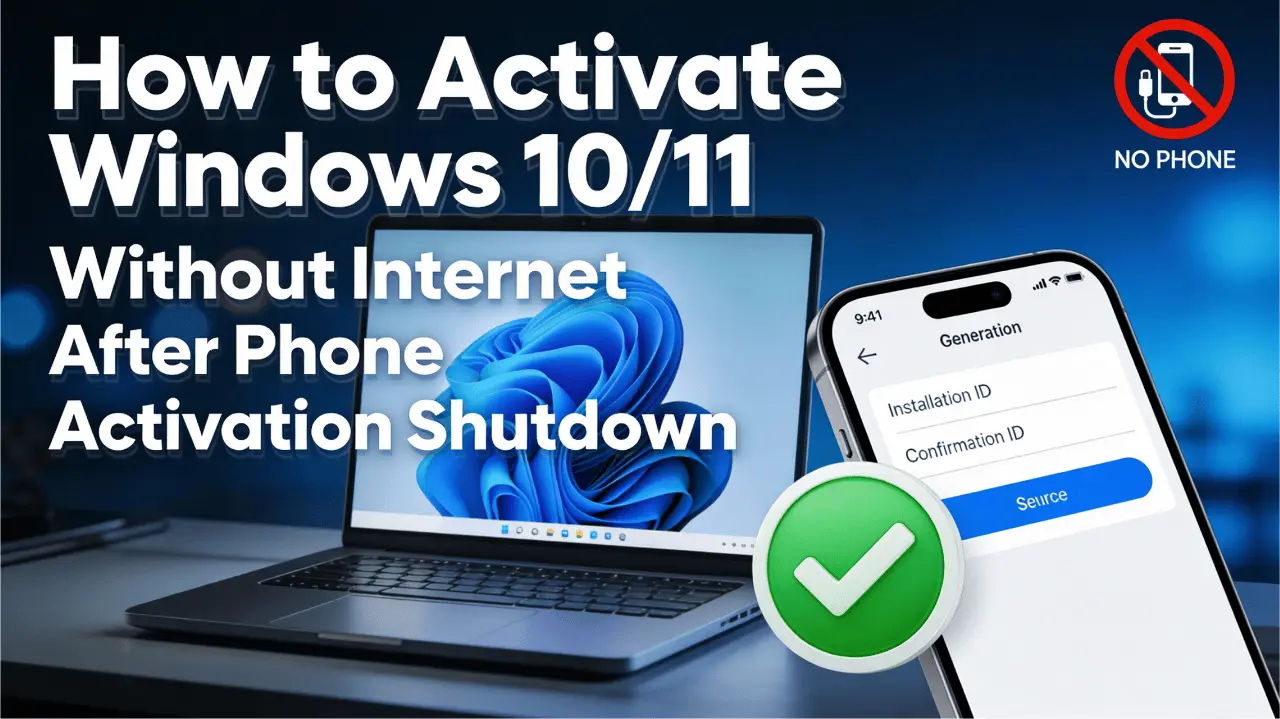
Microsoft’s decision to kill phone activation has left many users stranded. If you are working on a computer with no internet access, or if you simply want to keep your system offline, you might feel stuck.
The good news is that you can still activate Windows 10 and 11 in 2026 using a manual process. Here is your ultimate step-by-step guide.
Phase 1: Generate Your Installation ID (IID)
Even without an internet connection, your Windows PC can generate a unique code called an Installation ID.
Press the Windows Key + R on your keyboard to open the Run box.
Type slui 4 and press Enter.
Select your country or region from the list.
You will now see a screen showing a long string of numbers (usually 9 groups). This is your Installation ID. Write this down or take a photo of it.
Phase 2: Use the New Microsoft Activation Portal
Since your PC is offline, you must use a second device that has internet access (like a smartphone or another laptop).
Open your browser and go to the new official portal:
aka.ms/aoh You will be asked to solve a CAPTCHA to prove you are human.
Log in with your Microsoft Account. This is now a mandatory step in 2026.
Choose the option for "Windows" and enter your Installation ID when prompted.
If your key is valid, the portal will generate a Confirmation ID (CID) consisting of several groups of numbers (A through H).
Phase 3: Enter the Confirmation ID
Now, go back to your offline computer and follow these steps:
On the same activation screen where you saw your Installation ID, click "Enter Confirmation ID."
Carefully type in the numbers provided by the web portal into the corresponding boxes.
Click Activate Windows.
Your Windows should now be fully activated without ever connecting that specific PC to the internet!
Bonus: How to Bypass Internet During Windows Setup (2026)
If you are performing a clean install of Windows 11 and get stuck on the "Let's connect you to a network" screen, use this updated 2026 trick:
On the network setup screen, press Shift + F10 to open the Command Prompt.
Type the following command exactly:
start ms-cxh:localonlyPress Enter.
The setup will now skip the internet requirement and allow you to create a Local Account.
Conclusion
While Microsoft is making it harder to stay offline, these workarounds still work in 2026. By using the new Product Activation Portal, you can keep your secure systems running without a direct web connection.
-Specs,-Price,-and-6000-Series-Leaks.webp)
.webp)


Comments 0
No comments yet
Be the first to share your thoughts!
Leave a Comment