
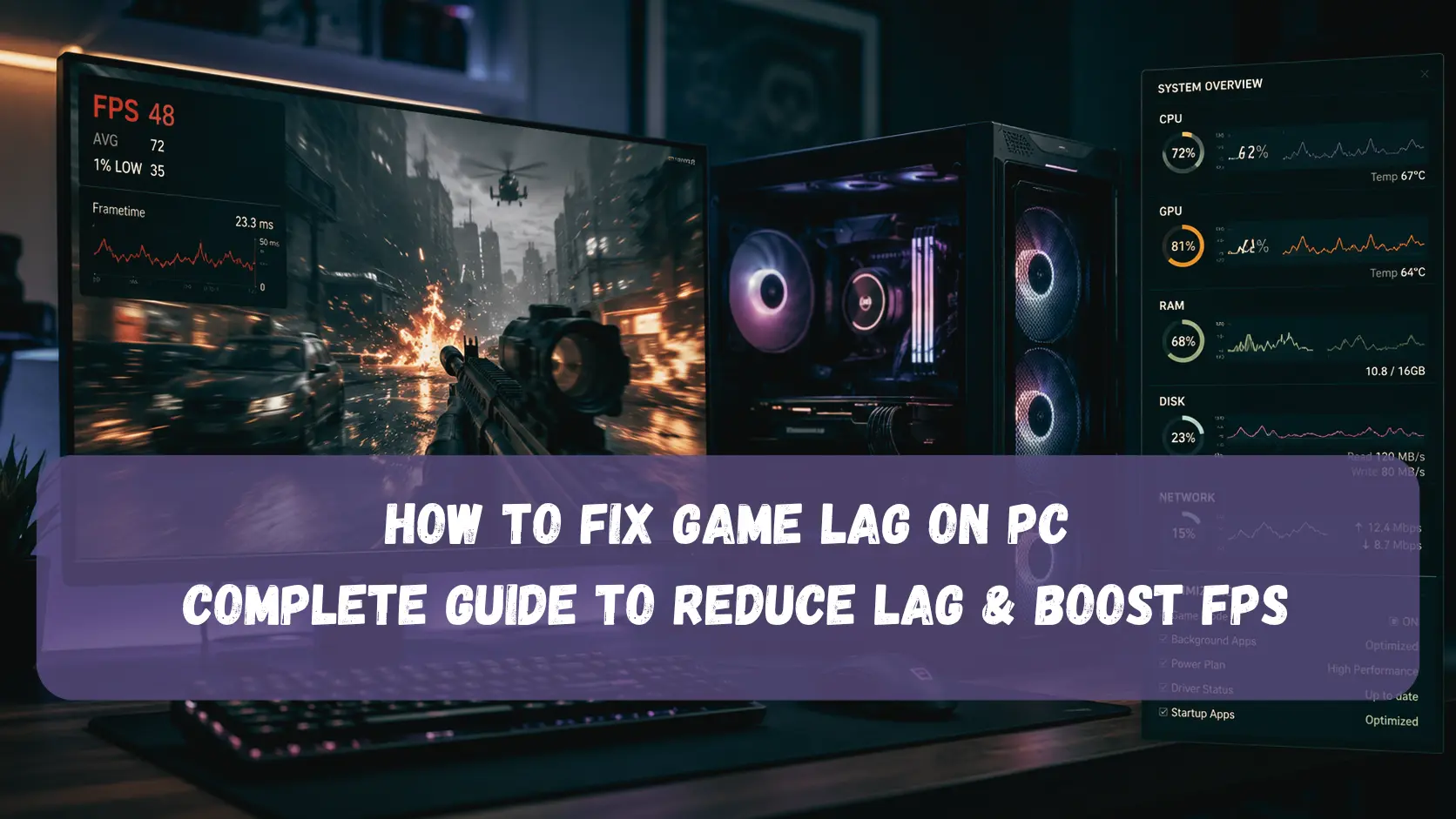
Game lag on PC can happen for several different reasons, including low FPS, sudden FPS drops, stuttering, high CPU or RAM usage, storage problems, overheating, graphics settings, or network issues.
To fix game lag, first identify whether the problem is caused by your PC's performance or your internet connection. Check your FPS, CPU, GPU, RAM, disk usage, temperatures, and ping while the game is running. Once you know the bottleneck, you can apply the right fix instead of changing random Windows settings.
In this guide, you'll learn how to fix game lag on PC, make games less laggy, reduce stuttering and FPS drops, and troubleshoot common CPU, RAM, GPU, disk, Windows, and network problems.
Quick Diagnosis: What Type of Game Lag Are You Experiencing?
Before changing any settings, identify what type of lag you're experiencing. Different symptoms usually point to different causes.
| Problem | What You Notice | What to Check |
|---|---|---|
| Low FPS | Game constantly feels slow or choppy | GPU usage and graphics settings |
| Sudden FPS drops | FPS suddenly falls during gameplay | CPU, GPU, temperatures, background apps |
| Stuttering | Short freezes or uneven movement | Frame times, RAM, CPU, shaders, storage |
| High ping | Delayed actions or slow response online | Ping, packet loss, Wi-Fi |
| Rubber-banding | Characters or vehicles move backward or teleport | Network connection and server |
| High CPU usage | CPU stays near 100% | Background processes and CPU limitations |
| High RAM usage | Memory is almost full | Background apps and available memory |
| 100% disk usage | Storage stays at 100% active time | Downloads, updates, and storage activity |
Why Is This Important?
Not all game lag is the same. Low FPS is usually a local PC performance problem, while high ping and rubber-banding are usually related to the network or game server.
Stuttering can have several causes, including frame-time spikes, background processes, shader compilation, memory pressure, storage activity, or overheating.
What Causes Game Lag on PC?
Game lag can come from several different parts of your system. Before changing settings, it is important to determine whether you're dealing with low FPS, system performance problems, or network lag.
Common causes include:
1. Low FPS or FPS Drops
Low FPS means your PC isn't rendering frames quickly enough for your target experience. FPS drops can occur when the GPU or CPU becomes heavily loaded, temperatures increase, background applications consume resources, or demanding game settings exceed what your hardware can handle.
2. High CPU Usage
Games can become slow or stutter when the CPU is heavily loaded. A CPU near 100% isn't automatically a problem, but persistent high usage combined with FPS drops can indicate a CPU limitation or another process competing for CPU resources.
3. High RAM Usage
Games need available memory for game data, textures, background processes, and Windows services.
When available RAM becomes very low, Windows may rely more heavily on the page file, which can contribute to slowdowns and stuttering.
For more information, see our guide on High RAM Usage in Windows 11/10: Why It Happens & How to Fix It.
4. 100% Disk Usage
If your storage drive reaches 100% active time while gaming, loading and background operations can become slower.
Windows services, game updates, browser activity, indexing, and other processes can contribute to high disk activity.
See our detailed guide on How to Fix 100% Disk Usage on Windows 10/11 for more troubleshooting steps.
5. GPU Performance Problems
The GPU is responsible for rendering game graphics. If a game is too demanding for your graphics card, you may experience low FPS or stuttering.
High graphics settings, resolution, ray tracing, and other visual effects can significantly increase GPU load.
6. Slow or Unstable Internet
Online games can experience a different type of lag caused by network problems.
High ping, packet loss, unstable Wi-Fi, or connection interruptions can cause delayed actions and rubber-banding even when your FPS is high.
7. Background Applications and Overlays
Browsers, recording software, launchers, Discord, game overlays, and other applications can consume CPU, RAM, GPU, or disk resources while you play.
8. Outdated Graphics Drivers
Graphics driver updates can include performance improvements, compatibility fixes, and game-specific optimizations.
An outdated or corrupted driver may cause unexpected performance problems.
9. Overheating
When the CPU or GPU becomes too hot, the hardware may reduce its clock speed to control temperatures.
This process, known as thermal throttling, can cause FPS drops and inconsistent performance.
10. Incorrect In-Game Graphics Settings
Running a game at settings that are too demanding for your hardware can result in low FPS and stuttering.
How to Fix Game Lag on PC
Work through the following solutions one at a time. After each major change, launch your game and check whether performance improves.
1. Check Your FPS and Hardware Usage
Before changing settings, find out what is actually limiting your PC.
Open Task Manager by pressing:
Ctrl + Shift + Esc
Go to the Processes or Performance tab and monitor:
- CPU usage
- Memory usage
- GPU usage
- Disk usage
If possible, also monitor your FPS and CPU/GPU temperatures while playing.
This can help you determine whether the problem is caused by the CPU, GPU, RAM, storage, or something else.
What to Look For
CPU near 100%:
The processor may be limiting performance, especially if the game is also experiencing FPS drops.
RAM almost full:
Background applications or limited available memory may be contributing to stuttering.
Disk at 100%:
Heavy storage activity may be affecting loading, asset streaming, or system responsiveness.
GPU near 100%:
The graphics card is likely working at full capacity. This can be completely normal in demanding games and does not automatically mean there is a problem.
2. Close Unnecessary Background Apps
Background applications can consume resources that your game needs.
Before launching a demanding game, close unnecessary programs such as:
- Web browsers
- Discord
- Microsoft Teams
- Launchers you don't need
- Video editing software
- Cloud synchronization applications
- Unnecessary recording applications
Open Task Manager → Processes and check which applications are consuming significant CPU, memory, GPU, or disk resources.
Don't end Windows system processes unless you know what they do.
3. Reduce In-Game Graphics Settings
If your GPU cannot maintain stable FPS, reducing graphics settings can provide an immediate improvement.
Start with settings that usually have a significant impact on performance:
- Resolution
- Texture quality
- Shadow quality
- View distance
- Ambient occlusion
- Reflections
- Volumetric effects
- Anti-aliasing
- Ray tracing
You don't necessarily need to set everything to Low.
Try reducing the most demanding settings first while keeping the visual quality you prefer.
Lower Resolution
Reducing resolution decreases the number of pixels your GPU needs to render.
For example, moving to 1080p can improve performance on systems that are limited by GPU rendering power.
4. Update Your Graphics Driver
Make sure your NVIDIA, AMD, or Intel graphics driver is up to date.
Graphics driver updates can improve compatibility with newer games and fix certain performance problems.
Download drivers from the official website or software provided by your GPU manufacturer.
After installing a major driver update, restart your PC and test the game again.
5. Check CPU Usage
If your CPU is consistently near 100% during gameplay, investigate which processes are consuming CPU resources.
Open:
Task Manager → Processes → CPU
Sort the list by CPU usage.
If another application is consuming significant CPU resources while the game is running, close it if it is not required.
If the game itself is using most of the CPU, reducing CPU-heavy settings such as:
- View distance
- NPC density
- World detail
- Physics quality
may help.
For more detailed Windows troubleshooting, see our guide on High CPU Usage on Windows 10/11.
6. Check and Reduce High RAM Usage
High RAM usage can cause slowdowns or stuttering when Windows runs short of available memory and starts relying more heavily on the page file. However, high RAM usage by itself isn't always a problem.
If your memory usage stays very high while gaming, see our guide on High RAM Usage in Windows 11/10.
Don't Confuse RAM Usage With GPU Memory
System RAM and VRAM are different.
Your graphics card has its own video memory, while Windows and applications use system RAM.
7. Check for 100% Disk Usage
100% disk active time can sometimes contribute to slowdowns, loading delays, or stuttering, especially when Windows or the game is actively reading and writing data.
If your disk frequently reaches 100%, see our guide on How to Fix 100% Disk Usage on Windows 10/11.
8. Disable Unnecessary Overlays
Game overlays can sometimes consume additional system resources or interfere with certain games.
Consider disabling overlays you don't need, such as:
- Discord overlay
- Steam overlay
- Xbox Game Bar
- NVIDIA overlay
- AMD overlay
You don't necessarily need to disable every overlay.
If your game is already running well, leave your current settings alone. Disable overlays as a troubleshooting step if you're experiencing stuttering or performance issues.
9. Check Your Internet Connection and Ping
If your FPS is stable but players teleport, actions are delayed, or the game frequently disconnects, the problem may be network-related rather than graphics performance.
Check:
- Ping
- Packet loss
- Connection stability
- Wi-Fi signal strength
- Background downloads
For online games, a faster internet connection does not always mean lower latency. A stable connection to the game server is often more important for responsive gameplay.
Try These Basic Steps
- Stop large downloads
- Pause cloud synchronization
- Restart your router if necessary
- Use Ethernet when practical
- Avoid heavy network activity on the same connection
10. Check CPU and GPU Temperatures
High temperatures can cause thermal throttling.
Use a reliable hardware monitoring application to check CPU and GPU temperatures while playing.
Pay attention to whether temperatures rise significantly immediately before FPS drops occur.
If overheating appears to be the problem:
- Clean dust from the PC
- Make sure fans are working
- Improve case airflow
- Check that the CPU cooler is functioning correctly
- Avoid blocking laptop ventilation
Do not rely on a single temperature number without considering the specific CPU or GPU model.
11. Use the Appropriate Windows Power Mode
Windows power settings can affect system performance.
Open:
Settings → System → Power & battery
On supported systems, select an appropriate performance-oriented power mode when gaming.
On laptops, remember that battery operation can reduce performance compared with being connected to AC power.
12. Optimize Windows Gaming Settings
Windows includes several gaming-related features that can affect performance.
Check:
Settings → Gaming
Review:
- Game Mode
- Xbox Game Bar
- Captures
- Background recording
If you don't use background recording, disabling unnecessary recording features can reduce resource usage.
Game Mode can remain enabled if it works well on your system.
13. Check for Background Downloads
Game launchers and Windows can download updates while you're playing.
Check applications such as:
- Steam
- Epic Games Launcher
- Xbox app
- Battle.net
- Other game launchers
Pause unnecessary downloads while gaming.
Also check Windows Update and cloud storage applications if you notice unexpected network or disk activity.
14. Scan for Malware or Unwanted Software
Malware and unwanted programs can consume CPU, RAM, disk, and network resources.
If your PC suddenly becomes slower or resource usage remains unusually high even when you're not gaming, run a security scan.
You can use:
- Windows Security
- Microsoft Defender
- A reputable malware scanner
Avoid installing multiple real-time antivirus programs at the same time, as they can conflict with each other and consume additional resources.
15. Restart Your PC and Test Again
A restart can clear temporary resource problems and close background processes.
After restarting:
- Don't open unnecessary applications.
- Launch the game.
- Monitor CPU, RAM, GPU, and disk usage.
- Check FPS and temperatures.
- Compare performance with your previous test.
This gives you a cleaner baseline.
How to Fix Game Stuttering
Stuttering is different from consistently low FPS. A game can show a relatively high average FPS and still feel laggy if frames are delivered unevenly.
Common causes include:
- CPU spikes
- RAM pressure
- Shader compilation
- Asset streaming
- Storage activity
- Overheating
- Graphics drivers
- Background processes
How to Reduce Game Stuttering
- Monitor FPS and frame-time consistency.
- Check CPU and GPU usage.
- Check available RAM.
- Monitor CPU and GPU temperatures.
- Update your graphics driver.
- Close unnecessary background applications.
- Reduce texture or streaming settings if VRAM or storage is under pressure.
- Allow shaders to finish compiling where applicable.
- Check storage activity when stuttering occurs.
How to Fix Game Lag Even With Good FPS
Sometimes a game can show 60, 100, or even higher FPS and still feel laggy.
This can happen because FPS and network or input latency are not the same thing.
For Online Games
Check:
- Ping
- Packet loss
- Server location
- Network stability
High ping or packet loss can make actions feel delayed even when your FPS is stable.
For Local Performance
Check:
- Frame-time consistency
- CPU usage
- GPU usage
- Background applications
- Controller or mouse input issues
A stable frame rate with consistent frame times generally feels smoother than an unstable frame rate that frequently jumps up and down.
How to Reduce Lag in Online Games
For online games, first determine whether the problem is network lag or FPS lag.
Network Lag Symptoms
- Players teleport
- Actions happen late
- Rubber-banding
- High ping
- Connection warnings
FPS Lag Symptoms
- Low frame rate
- Screen stuttering
- Choppy movement
- FPS drops during effects
- GPU or CPU usage near its limit
If the issue is network-related:
- Use a wired connection when possible
- Stop background downloads
- Close cloud synchronization
- Avoid congested Wi-Fi
- Choose a closer game server when available
- Check for packet loss
If the issue is FPS-related, focus on your PC hardware, graphics settings, temperatures, and background processes instead.
Why Is My PC So Laggy When I Play Games?
If your PC becomes noticeably laggy only when you start a game, the game may be putting heavy load on your CPU, GPU, RAM, or storage. Background applications, overheating, outdated drivers, and other Windows processes can also contribute.
Open Task Manager while the game is running and check CPU, Memory, GPU, and Disk usage. Also monitor FPS and temperatures. Look for the resource that becomes unusually high when the lag occurs.
For example, consistently high GPU usage with low FPS may point toward demanding graphics settings or a GPU limitation, while high CPU usage with relatively low GPU usage may indicate a CPU limitation or another CPU-heavy process.
If the problem mainly happens in online games and your FPS is stable, check ping and packet loss as well. Network problems can make a game feel laggy even when your PC is performing normally.
How to Make Games Less Laggy on PC
If you're looking for how to make games less laggy, start with the changes that have the biggest impact on performance. You usually don't need to change every Windows setting.
Instead, identify whether the problem is caused by graphics performance, CPU usage, memory, storage, temperatures, or your network connection.
Quick Checklist
- Close unnecessary background apps
- Lower demanding graphics settings
- Reduce resolution if GPU performance is limited
- Check CPU usage
- Check available RAM
- Check disk activity
- Update graphics drivers
- Check CPU and GPU temperatures
- Disable unnecessary overlays
- Stop downloads and cloud syncing
- Check ping and packet loss for online games
- Restart the PC after major changes
Change one or two settings at a time and test the game after each change. This makes it much easier to identify what actually improved performance.
When Should You Upgrade Your Hardware?
If you've optimized the game and your hardware is consistently reaching its limits, an upgrade may eventually be necessary.
Consider a GPU Upgrade If:
- GPU usage stays near maximum
- Graphics settings need to be very low
- FPS remains below your target
- The game is primarily GPU-limited
Consider a CPU Upgrade If:
- CPU usage is consistently near 100%
- GPU usage remains low because the CPU cannot keep up
- FPS doesn't improve much when graphics settings are lowered
Consider More RAM If:
- Memory usage regularly approaches 100%
- Games and background applications compete for available memory
- Windows starts relying heavily on the page file
Consider an SSD If:
- You're still using a mechanical HDD
- Game loading is slow
- Storage activity frequently reaches 100%
- Asset streaming causes noticeable delays
Hardware upgrades should be based on the actual bottleneck rather than simply buying the most expensive component.
Game-Specific Lag Fixes
Different games can have very different performance problems.
For example, competitive shooters may be heavily affected by CPU performance and frame-time consistency, while large open-world games may place greater demands on GPU memory, storage, and asset streaming.
If you're experiencing lag in a specific game, use the game's own performance settings and troubleshooting options first.
You can also check our Game Lag Fixes section for game-specific guides.
Frequently Asked Questions
Why Are My Games Lagging on PC?
Game lag can be caused by low FPS, high CPU or RAM usage, GPU limitations, high disk activity, overheating, outdated drivers, background applications, or network problems.
Start by checking CPU, RAM, GPU, disk, FPS, temperatures, and network performance while the game is running.
How Do I Fix Game Lag?
Start by closing unnecessary applications, lowering demanding graphics settings, updating your GPU driver, checking system temperatures, and identifying whether the problem is FPS-related or network-related.
How Can I Make Games Less Laggy?
Identify the component or connection causing the problem first. Then reduce demanding graphics settings, close unnecessary applications, update drivers, check temperatures, and troubleshoot your network if you're playing online.
How Do I Stop Games From Lagging?
There isn't one universal fix because game lag can have different causes. Check your FPS, CPU, GPU, RAM, disk, temperatures, and network connection to identify the source before changing settings.
Why Is My PC So Laggy When I Play Games?
A game can put heavy load on the CPU, GPU, RAM, or storage. Background applications, overheating, outdated drivers, and network problems can also make a PC or game feel laggy.
Why Does My Game Stutter Even With High FPS?
High average FPS does not guarantee smooth frame delivery. Background processes, shader compilation, CPU spikes, asset streaming, drivers, and inconsistent frame times can still cause stuttering.
Can Low RAM Cause Game Lag?
Yes. When available RAM becomes very low, Windows may use the page file more heavily, which can contribute to slowdowns and stuttering.
Can 100% CPU Usage Cause Game Lag?
Yes. If the CPU is fully loaded and cannot keep up with the game or background processes, FPS drops and stuttering can occur.
Can 100% Disk Usage Cause Game Stuttering?
It can contribute to system slowdowns, loading delays, or stuttering, especially when the game or Windows needs to read or write data while the storage drive is already heavily occupied.
Does Internet Speed Affect Game Lag?
Internet speed is not the only factor. Ping, packet loss, connection stability, and server distance can be more important for online gaming responsiveness.
How Do I Reduce FPS Drops?
Check which component is reaching its limit, reduce demanding graphics settings, close background applications, update drivers, and monitor temperatures.
Why Does My Game Lag After a Windows Update?
A Windows update can sometimes change drivers, background processes, or system settings. Check for available graphics-driver updates and monitor CPU, RAM, disk, GPU, and network activity to identify the cause.
Quick Game Lag Fix Summary
| Problem | What to Check |
|---|---|
| Low FPS | GPU usage and graphics settings |
| Sudden FPS drops | CPU, GPU, temperatures, background apps |
| Game stuttering | RAM, CPU spikes, drivers, frame times |
| High CPU usage | Background processes and CPU limitations |
| High RAM usage | Memory-consuming applications and available RAM |
| 100% disk usage | Windows services, downloads, and storage activity |
| High ping | Network stability, packet loss, and server distance |
| Overheating | CPU/GPU temperatures and airflow |
| Lag after updates | Graphics drivers and recent Windows changes |
| Slow loading | Storage drive performance and asset streaming |
Final Recommendation
The best way to fix game lag is to identify the actual bottleneck instead of changing random Windows settings.
Start by checking your FPS, CPU, GPU, RAM, disk usage, temperatures, and network performance while the problem is happening.
Then apply the appropriate fix:
Low FPS → Reduce demanding graphics settings and check GPU performance.
High CPU usage → Investigate background processes and CPU limitations.
High RAM usage → Close unnecessary applications and check available memory.
100% disk usage → Identify the process causing high disk activity.
High ping → Troubleshoot your network connection and check for packet loss.
Overheating → Improve cooling and airflow and check whether temperatures rise before FPS drops.
If the problem continues after software optimization, your hardware may be reaching its performance limits.

Comments 0
No comments yet
Be the first to share your thoughts!
Leave a Comment