
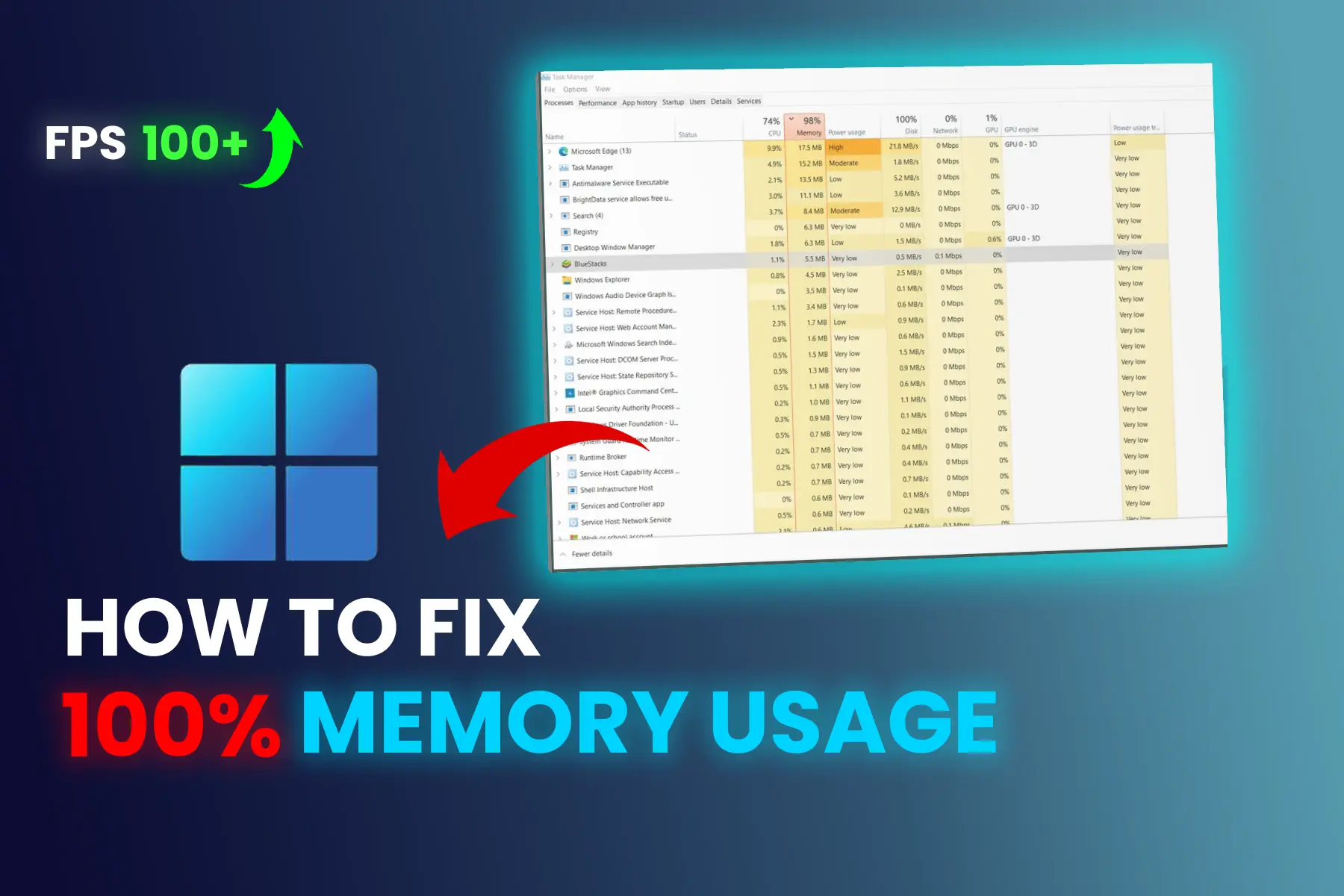
Is Windows 11 or Windows 10 using too much RAM even when you're not doing much? High memory usage can be caused by background apps, startup programs, browser tabs, memory leaks, or simply not having enough RAM for your workload.
Some RAM usage is completely normal. Windows uses memory for system processes, background tasks, and cached data. The real problem is when RAM usage stays unusually high and causes slowdowns, freezing, app crashes, or poor gaming performance.
In this guide, you'll learn how to check what's using your memory and how to safely reduce high RAM usage on Windows 11 and Windows 10. We'll start with simple fixes before moving to more advanced troubleshooting.
How to Check RAM Usage in Windows 11 and Windows 10
Before changing Windows settings, find out which apps or processes are actually using your RAM.
- Press Ctrl + Shift + Esc to open Task Manager.
- Open the Processes tab.
- Click the Memory column to sort processes by RAM usage.
- Look for applications that are using an unusually large amount of memory.
- Check whether the same application continues to consume more memory over time.
Common memory-heavy applications include web browsers, games, Discord, Microsoft Teams, development tools, video editors, and other background applications.
Don't end a process just because it uses a lot of memory. Some applications naturally require more RAM. First determine whether the application is causing performance problems.
❓ What Is High RAM Usage?
RAM stores data for active programs, background tasks, and Windows services. There is no single RAM percentage that is considered normal for every Windows PC. Idle memory usage can vary depending on how much RAM you have installed, background processes, startup apps, and cached data.
The more important warning sign is consistently high memory usage accompanied by slowdowns, freezing, app crashes, or heavy paging to disk.
❓ Is 100% RAM Usage a Problem?
Not always—but consistently staying near 100% can become a problem. When available RAM runs low, Windows may rely more heavily on the page file on your storage drive, which can make the system feel slower.
If your Windows 11 PC is specifically showing 100% memory usage in Task Manager, see our detailed guide on [how to fix 100% RAM usage in Windows 11].
When RAM usage stays near 100%, you may notice:
- Apps freeze or become unresponsive
- Games may lag or stutter
- Browser tabs may become slow or crash
- Windows may feel significantly slower
- Disk activity may increase because of pagefile usage
If your PC is consistently reaching 100% RAM usage and you're experiencing these symptoms, it's worth identifying which apps or processes are consuming the most memory.
If your RAM usage is high even when you're not doing anything demanding, the issue may be related to background apps, startup programs, browser tabs, or other processes. See our guide on [why Windows 11 is using too much RAM] for a deeper look at the causes and ways to reduce unnecessary memory usage.
🔍 Why Windows 11 / Windows 10 Uses High RAM When Idle
1. Too Many Background Apps
Discord, Teams, OneDrive, Steam, Chrome extensions, Windows telemetry.
2. Memory Leaks
Buggy applications consume RAM and don’t release it even after closing.
3. Startup Programs
Many programs load at boot, causing high RAM usage instantly.
4. Malware
Hidden miners or infected files use RAM continuously.
5. Browser Extensions
Chrome/Edge tabs and extensions can cause high RAM intake.
6. Windows 11 Features
Widgets, search indexing, and Teams Chat use extra memory.
🛠️ High RAM Usage Fix (Windows 11/10) — Best Solutions
1. Check Task Manager for Memory-Heavy Apps
Open Task Manager with Ctrl + Shift + Esc and sort the Processes list by Memory.
If one application is using an unusually large amount of RAM, close it if you don't need it. If the same application repeatedly consumes more memory over time, check for updates or known memory leaks.
2. Disable Unnecessary Startup Apps
- Press CTRL + SHIFT + ESC
- Go to Startup Apps
- Disable unnecessary apps:
- Microsoft Teams
- OneDrive
- Discord
- Steam
- Adobe Updaters
Disabling unnecessary startup apps can reduce background memory usage and help Windows start with fewer programs running.
3. Reduce Browser RAM Usage
Chrome and Edge can use a significant amount of RAM when many tabs and extensions are open.
Try these steps:
- Close tabs you aren't using.
- Remove extensions you no longer need.
- Use the browser's built-in memory-saving feature when available.
- Restart the browser if memory usage keeps increasing.
4. Close Apps That May Have Memory Leaks
A memory leak can happen when an application continues using RAM without properly releasing it.
If one application keeps increasing its memory usage over time:
- Close the application.
- Restart it and check memory usage again.
- Install available updates.
- Check whether the problem occurs only with that application.
- If necessary, look for an alternative application.
5. Restart Your Windows PC
If RAM usage remains unusually high after closing applications, restart Windows.
A restart ends the current session and clears temporary memory usage associated with applications and processes. This is especially useful if the computer has been running for a long time.
6. Scan Windows for Malware
Malware can sometimes run processes in the background and consume system resources.
Run a full scan with Windows Security. If you suspect a persistent infection, you can also use Microsoft Defender Offline or another reputable security scanner.
7. Update Windows, Drivers, and Apps
Updates can fix bugs, memory leaks, and driver compatibility problems.
Check Windows Update and also update applications or device drivers associated with the problem.
8. Review Background Apps and Windows Features
Review apps and features that run in the background and disable only the ones you don't use.
Avoid disabling Windows services randomly. Some Windows services are required for system features and disabling them can create other problems.
9. Uninstall Bloatware
Uninstall apps you don't use, especially unnecessary third-party or manufacturer-installed software that runs in the background.
- Xbox Game Bar
- Clipchamp
- Mixed Reality Portal
- Advertising apps
This reduces background memory load.
If you have programs that you no longer use, uninstalling them can reduce unnecessary background processes and startup activity.
10. Increase Virtual Memory (Pagefile)
For most users, Windows should be allowed to manage the paging file automatically.
Go to:
Settings / Control Panel → System → Advanced system settings → Performance → Settings → Advanced → Virtual memory
Make sure Windows is allowed to automatically manage the paging file size unless you have a specific reason to configure it manually.
When available RAM becomes low, Windows may rely more on the paging file stored on your drive. This can increase disk activity and may contribute to 100% disk usage issues on Windows.
11. Check for Hardware or Driver-Related Memory Problems
If Task Manager shows high memory usage but no normal application appears responsible, the problem may be related to a driver or system component.
Update your chipset, graphics, network, and other important device drivers from reliable sources. If the issue started after a driver update, consider whether rolling back that driver is appropriate.
12. Consider Upgrading Your RAM
If your computer regularly runs out of available RAM during normal use, a hardware upgrade may be the best long-term solution.
For example, moving from 8GB to 16GB can provide more room for everyday multitasking, while 32GB can be useful for heavier gaming, video editing, virtual machines, development tools, and other memory-intensive workloads.
The right amount of RAM depends on your applications and workload.
💻 Fix for Laptops with 100% RAM Usage
If your laptop frequently reaches high memory usage:
- Close unnecessary background apps
- Review Startup Apps in Task Manager
- Use Windows power settings appropriate for your workload
- Check which apps are consuming the most memory
- Make sure Windows and your device drivers are up to date
Consider adding more RAM if your system regularly runs out of available memory
🧩 How to Fix High RAM Usage While Gaming
- Disable unnecessary overlays
- Close unnecessary browser tabs/apps
- Reduce settings if the game genuinely needs more memory
- Check for memory leaks
- Keep GPU/game drivers updated
🧾 Quick Fix Summary
| Problem | Best First Step |
|---|---|
| High RAM usage Windows 11 | Check Task Manager and disable unnecessary startup apps |
| High RAM usage when idle | Check background processes and scan for malware |
| RAM usage near 100% | Identify memory-heavy apps and check virtual memory |
| High RAM usage with nothing running | Check startup apps and memory leaks |
| Windows 11 high RAM usage fix | Review background apps, updates, and unnecessary features |
🎯 Final Thoughts
High RAM usage in Windows 11 or Windows 10 isn't always a problem. Windows naturally uses memory for active applications, background processes, and caching.
If your PC is consistently using almost all available RAM and you are experiencing slowdowns, freezing, crashes, or lag, start by checking Task Manager to identify the process responsible.
Then work through the fixes in this guide: review startup and background apps, reduce browser memory usage, check for memory leaks, scan for malware, update Windows and drivers, and make sure virtual memory is configured correctly.
If your normal workload still regularly exceeds the available physical RAM, upgrading your memory may provide the most noticeable long-term improvement.
.webp)
.webp)
-Fix-Errors-&-Lag-(1).webp)
Comments 0
No comments yet
Be the first to share your thoughts!
Leave a Comment