

Seeing 100% disk usage in Task Manager can make Windows feel extremely slow, cause freezing or stuttering, delay app launches, and sometimes make the PC temporarily unresponsive.
The good news is that 100% disk usage does not automatically mean your hard drive or SSD is failing. A background process, Windows Search indexing, SysMain, antivirus scanning, low available RAM, Windows updates, storage drivers, or another application may be responsible.
In this guide, you'll learn how to find what is causing 100% disk usage and reduce excessive disk activity on Windows 10 and Windows 11, whether you're using an HDD or SSD.
Quick Answer: How to Fix 100% Disk Usage
If Task Manager shows Disk at 100%, try these steps in order:
- Open Task Manager and identify the process using the disk.
- Restart Windows and check whether the problem returns.
- Temporarily stop SysMain if it is responsible for high disk activity.
- Check Windows Search indexing if Search or indexing is causing the activity.
- Close browser tabs and background applications using the drive.
- Check for Windows Updates and background downloads.
- Run a malware scan with Windows Security.
- Make sure Windows is managing the page file automatically.
- Check available storage space and the health of the drive.
- Update problematic storage or chipset drivers.
- Run DISM and SFC if Windows system files may be corrupted.
The most important step is to identify which process is actually causing the disk activity before disabling Windows services or changing advanced settings.
What Does 100% Disk Usage Mean?
In Task Manager, 100% disk usage generally means the storage drive is fully occupied with read/write activity at that moment.
It does not necessarily mean that the drive is permanently damaged.
For example, Windows may temporarily reach 100% disk usage while:
- Installing or downloading updates
- Indexing files for Windows Search
- Running an antivirus scan
- Loading large applications or games
- Using the page file because available RAM is low
- Performing background maintenance
- Reading or writing large amounts of data
- Running an application that is generating heavy disk activity
If disk usage stays near 100% for long periods and your PC becomes slow or unresponsive, troubleshooting is worthwhile.
1. Check Which Process Is Causing 100% Disk Usage
Before changing Windows services or drivers, find out what is actually using your drive.
- Press Ctrl + Shift + Esc to open Task Manager.
- Select Processes.
- Click the Disk column to sort processes by disk usage.
- Watch the list while disk usage is near 100%.
- Identify the application or Windows process that repeatedly appears near the top.
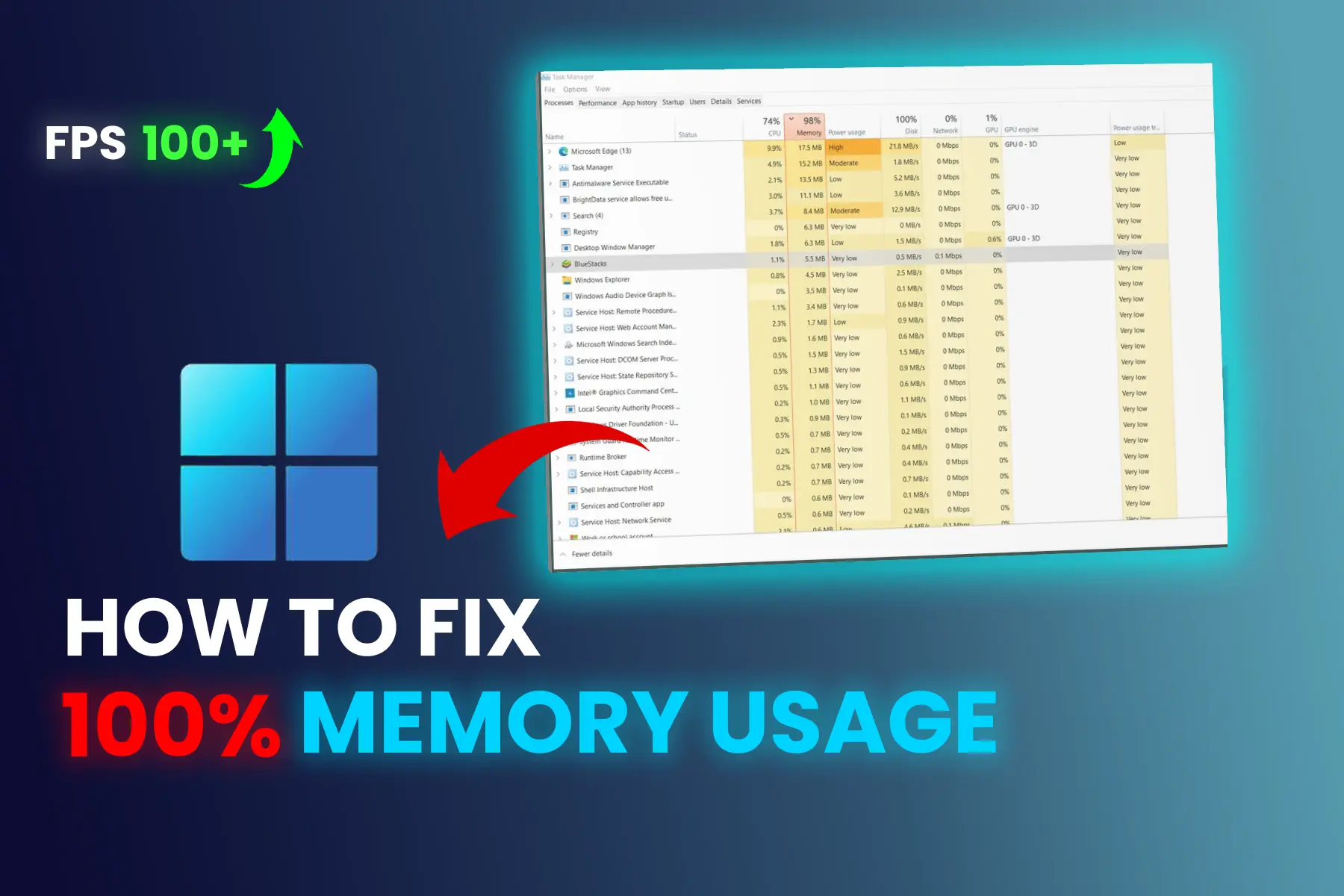
Task Manager can show CPU, memory, disk, and network activity, making it a useful starting point for identifying resource-heavy processes.
If another process is also causing unusually high CPU usage, see our guide on High CPU Usage on Windows 10/11 for detailed troubleshooting steps.
What the result can tell you
- Windows Search → check indexing.
- SysMain → test the SysMain service.
- Antivirus/security process → check whether a scan is running.
- Browser → reduce background activity and heavy tabs.
- Windows Update → allow the update process to finish if appropriate.
- System → investigate drivers, paging, storage, or another background process.
Don't immediately end an unfamiliar Windows process just because it appears in Task Manager.
2. Restart Windows and Check Again
A restart is a simple first troubleshooting step.
Temporary background tasks, update activity, or applications stuck performing disk operations may stop after a restart.
After restarting:
- Wait a few minutes for Windows to finish loading.
- Open Task Manager.
- Check the Disk column.
- See whether disk usage returns to 100%.
If the problem returns repeatedly, continue with the steps below.
3. Stop SysMain Temporarily
SysMain is a Windows service designed to help applications launch more efficiently. On some systems, however, it can be associated with unusually high disk activity.
Don't permanently disable SysMain as your first step. Instead, temporarily stop it and see whether the disk usage changes.
How to test SysMain
- Press Win + R.
- Type
services.msc. - Press Enter.
- Find SysMain.
- Right-click it and select Stop.
- Open Task Manager and check Disk usage.
If disk usage drops significantly after stopping SysMain, you've found a useful clue.
If there is no improvement, start the service again.
Tip: Don't change Startup Type to Disabled just because Disk usage reaches 100%. First identify the cause and test whether the service actually makes a difference.
4. Check Windows Search Indexing
Windows Search creates an index of files and their properties so searches can return results more quickly. Initial or extensive indexing can temporarily use system resources.
If Windows Search appears to be responsible for unusually high disk activity, first allow indexing to finish if it is a one-time or temporary spike.
If the problem continues, review which folders Windows is indexing.
Check Search indexing settings
On Windows 11:
Settings → Privacy & security → Searching Windows
You can review the search locations and choose which areas should be indexed.
On Windows 10, search for Searching Windows from Settings.
Microsoft notes that you can customize indexed locations, which can reduce the amount of content Windows needs to process.
Temporarily test Windows Search
You can also test whether the service is contributing to the problem:
- Press Win + R.
- Type
services.msc. - Find Windows Search.
- Right-click → Stop.
- Check Task Manager.
If there is no improvement, start the service again.
You can also use Command Prompt as Administrator:
sc stop "WSearch"
To start it again:
sc start "WSearch"
5. Reduce Browser Background Disk Activity
Chrome and Edge can generate disk activity through cached files, background tasks, updates, preloading, and large numbers of open tabs.
If your browser appears near the top of the Disk column in Task Manager, try reducing its background activity.
Google Chrome
Open:
Chrome → Settings → Performance
Review options related to:
- Memory Saver
- Preloading pages
- Background activity
Disable features you don't need and restart Chrome.
Microsoft Edge
Open:
Edge → Settings → System and performance
Review startup and background options and disable unnecessary features.
Then check:
Task Manager → Processes → Disk
to see whether disk activity changes.
6. Check Windows Updates and Background Downloads
Windows may generate significant disk activity while downloading, installing, or processing updates.
Check:
Settings → Windows Update
If an update is currently downloading or installing, allow the process to complete when practical and then restart your PC.
Also check applications such as:
- Game launchers
- Microsoft Store
- Cloud storage applications
- Download managers
- Backup software
A large game update or cloud synchronization can temporarily push disk usage close to 100%.
7. Check Available Storage Space
Low free storage space is a different problem from 100% disk usage in Task Manager, but a nearly full system drive can still cause Windows to become less responsive and can interfere with updates and temporary file operations.
Open:
Settings → System → Storage
Windows shows how much space is being used by apps, temporary files, system files, and other categories.
If your system drive is nearly full:
- Remove unnecessary temporary files.
- Uninstall apps you no longer use.
- Review large or unused files.
- Empty the Recycle Bin if appropriate.
- Move large personal files to another drive.
- Use Storage Sense or Cleanup recommendations where available.
Storage Sense can automatically remove certain unnecessary temporary files and help free space when storage is running low.
Important: Freeing storage space may help a nearly full drive, but it does not automatically fix every case of 100% active disk usage.
8. Check for Malware or Unwanted Software
Malware and unwanted software can sometimes run background processes that continuously read from or write to your drive.
Run a scan using:
Windows Security → Virus & threat protection → Scan options → Full scan
If you notice an unfamiliar process using unusually high disk resources, research the process before ending or removing it.
Don't delete or disable system processes simply because their names look unfamiliar.
9. Check Virtual Memory and Page File Settings
When available RAM is low, Windows can use the page file on your storage drive to move memory data between RAM and storage.
Heavy paging can increase disk activity.
For most users, Windows should manage the page file automatically.
Enable automatic page file management
- Open Control Panel.
- Go to System and Security → System.
- Select Advanced system settings.
- Under Performance, click Settings.
- Select the Advanced tab.
- Under Virtual memory, click Change.
- Enable Automatically manage paging file size for all drives.
- Click OK and restart Windows if prompted.
Microsoft also documents automatic page-file management as the normal configuration for Windows troubleshooting scenarios.
If your system frequently runs low on available memory, see our guide on high RAM usage in Windows 11/10.
10. Check Your Storage Drive Health
If disk usage remains extremely high during normal tasks, especially when the PC also freezes, becomes unusually slow, or produces unusual drive noises, check the health of the storage device.
This is especially important for older HDDs.
Watch for symptoms such as:
- Very slow file transfers
- Frequent freezing
- Applications taking unusually long to open
- Files becoming difficult to access
- Unexpected read/write errors
- Unusual clicking or mechanical noises from an HDD
If you suspect the drive itself is failing, back up important files before attempting major troubleshooting or replacing the drive.
If the PC uses an old HDD, moving Windows to an SSD can also make a major difference to overall system responsiveness.
If high disk activity is affecting gaming performance or causing stuttering, see our guide on How to Fix Game Lag on PC for additional troubleshooting steps.
11. Check Storage Controller and Chipset Drivers
A problematic or outdated storage-related driver can sometimes contribute to abnormal disk activity.
Open:
Device Manager
Then check:
IDE ATA/ATAPI controllers
or:
Storage controllers
Look for devices showing a warning icon or driver-related error.
You can check the Driver and Device status information in the device properties.
If a driver problem is confirmed, use Windows Update or your PC/motherboard manufacturer's official support page to obtain the appropriate driver.
⚠️ Don't randomly uninstall storage controllers
Don't uninstall a storage controller simply because Task Manager shows 100% disk usage.
Storage controller configurations vary between PCs, and removing the wrong driver can create additional storage or boot problems.
12. Run DISM and SFC to Repair Windows
If Windows system files are corrupted, built-in repair tools may help resolve related system problems.
Open Command Prompt as Administrator and run:
DISM /Online /Cleanup-Image /RestoreHealth
Wait for the process to complete.
Then run:
sfc /scannow
Restart your PC afterward and check whether the disk usage problem continues.
Microsoft's current instructions also recommend running DISM before SFC when repairing potentially corrupted Windows system files.
13. Test Windows With a Clean Boot
If Task Manager doesn't clearly identify the cause, a clean boot can help determine whether a third-party startup program or service is creating the problem.
Microsoft's clean-boot procedure uses System Configuration (msconfig) to start Windows with a reduced set of services and startup programs.
This is useful when:
- Disk usage becomes 100% after Windows starts.
- The problem is caused by third-party software.
- You can't identify the responsible application.
- The issue disappears when unnecessary startup services are disabled.
After testing, return Windows to Normal Startup rather than leaving troubleshooting settings changed permanently.
14. Advanced Windows Update Troubleshooting
If the problem began around a failed or incomplete Windows Update, update components may need additional troubleshooting.
Before using advanced commands, check:
Settings → Windows Update → Update history
and determine whether an update recently failed.
Avoid resetting Windows Update components simply because Disk usage is high. Use this approach when update-related activity is actually connected to the problem.
15. Prevent 100% Disk Usage From Returning
Once you've identified and fixed the cause, these habits can help reduce unnecessary disk activity:
- Keep Windows updated.
- Keep important device drivers up to date.
- Avoid running unnecessary background applications.
- Review browser startup and background settings.
- Keep enough free storage space available.
- Remove applications you no longer use.
- Allow Windows Search indexing to finish instead of repeatedly stopping it.
- Monitor applications that perform frequent downloads or synchronization.
- Consider upgrading an old HDD to an SSD if storage speed is a major bottleneck.
100% Disk Usage vs 100% Disk Space
These are two completely different problems.
100% Disk Usage in Task Manager means the drive is currently handling a very high level of read/write activity.
100% Disk Space means the storage capacity is full or nearly full.
For example, a 1 TB drive can have plenty of free storage space while still showing 100% active disk time in Task Manager.
So don't assume that deleting files will automatically fix 100% disk usage.
When Should You Suspect a Failing Drive?
High disk usage alone does not prove that an HDD or SSD is failing.
However, investigate the storage hardware if 100% usage is accompanied by:
- Frequent freezing
- Very slow file access
- Read/write errors
- Files becoming corrupted or inaccessible
- Unexpected crashes
- Unusual HDD noises
- Persistent performance problems even when no obvious process is using the drive
If important files are stored on a drive showing these symptoms, back up your data first.
Frequently Asked Questions
Why is my disk usage at 100% when nothing is running?
Windows can still perform background tasks even when no visible applications are open. Windows Search indexing, updates, antivirus scans, maintenance tasks, paging, and background applications can all generate disk activity.
Open Task Manager and sort by the Disk column to identify the process responsible.
Does 100% disk usage mean my hard drive is failing?
No. 100% disk usage by itself does not prove that a drive is failing.
A background process, Windows service, update, antivirus scan, paging, or application can temporarily use the drive heavily.
Persistent high disk usage combined with freezing, read/write errors, or other storage problems deserves further hardware investigation.
Does this happen only on HDDs?
No.
HDDs are more sensitive to heavy disk activity because their mechanical read/write performance is much lower than SSDs, but SSDs can also reach 100% active time.
Can low RAM cause 100% disk usage?
Yes.
When available RAM becomes low, Windows may rely more heavily on the page file stored on the drive. Heavy paging can therefore increase disk activity.
If this happens frequently, check your available memory and review our guide to high RAM usage in Windows 11/10.
Should I disable SysMain permanently?
Not necessarily.
SysMain is a Windows service intended to improve application launch performance. If stopping it temporarily makes no difference, there is little reason to leave it disabled.
First identify whether SysMain is actually contributing to the problem.
Should I disable Windows Search?
Not necessarily.
Windows Search uses indexing to make file searches faster. If indexing is responsible for temporary disk activity, allowing it to finish may be enough.
If indexing continues to cause problems, review the folders being indexed rather than automatically disabling Windows Search.
Why is my SSD at 100% usage?
An SSD can also reach 100% active time when applications or Windows are generating enough read/write activity to keep the drive fully busy.
Check Task Manager to identify the process responsible.
Why is my disk at 100% after starting Windows?
Startup applications, Windows services, antivirus scans, updates, indexing, cloud synchronization, and other background tasks can temporarily create high disk activity after startup.
Check Task Manager for several minutes after Windows starts and identify which process remains active.
Will upgrading from HDD to SSD fix 100% disk usage?
An SSD can dramatically improve general Windows responsiveness compared with an older HDD, but it does not automatically fix every cause of 100% disk usage.
If software is continuously generating heavy disk activity, the SSD may still reach high active time.
Conclusion
100% disk usage on Windows 10 or Windows 11 does not automatically mean your drive is damaged. The most important step is to identify which process or service is causing the high disk activity.
Start with Task Manager, then check Windows Search, SysMain, browser activity, Windows Update, malware, available RAM, page-file usage, storage space, drivers, and drive health.
Avoid randomly disabling Windows services or uninstalling storage drivers. Find the cause first, test one change at a time, and restore settings that don't improve the problem.
If the problem continues even when no obvious process is responsible, investigate the health of the storage drive and consider whether an older HDD is becoming a performance bottleneck.
.webp)
.webp)
Comments 0
No comments yet
Be the first to share your thoughts!
Leave a Comment