
-Fix-Errors-&-Lag-(1).webp)
Microsoft is releasing the first major security update of 2026. While these updates are important for your PC’s safety, they often bring unexpected bugs, installation errors, and performance lags.
If you are facing problems with the January 2026 KB update, this guide will help you fix them quickly.
1. Common Installation Errors (0x800f081f, 0x80070002)
Many users report that the update gets stuck at 0% or 99%, or shows an error code like 0x800f081f.
How to Fix:
Run Windows Update Troubleshooter: Go to Settings > System > Troubleshoot > Other troubleshooters and click Run next to Windows Update.
Reset Update Components: Open Terminal (Admin) and type these commands one by one:
net stop wuauservnet stop bits(This restarts the update service to clear glitches).
Manual Download: If the settings menu fails, visit the Microsoft Update Catalog, search for your KB number (e.g., KB5070311), and download the "Standalone Installer."
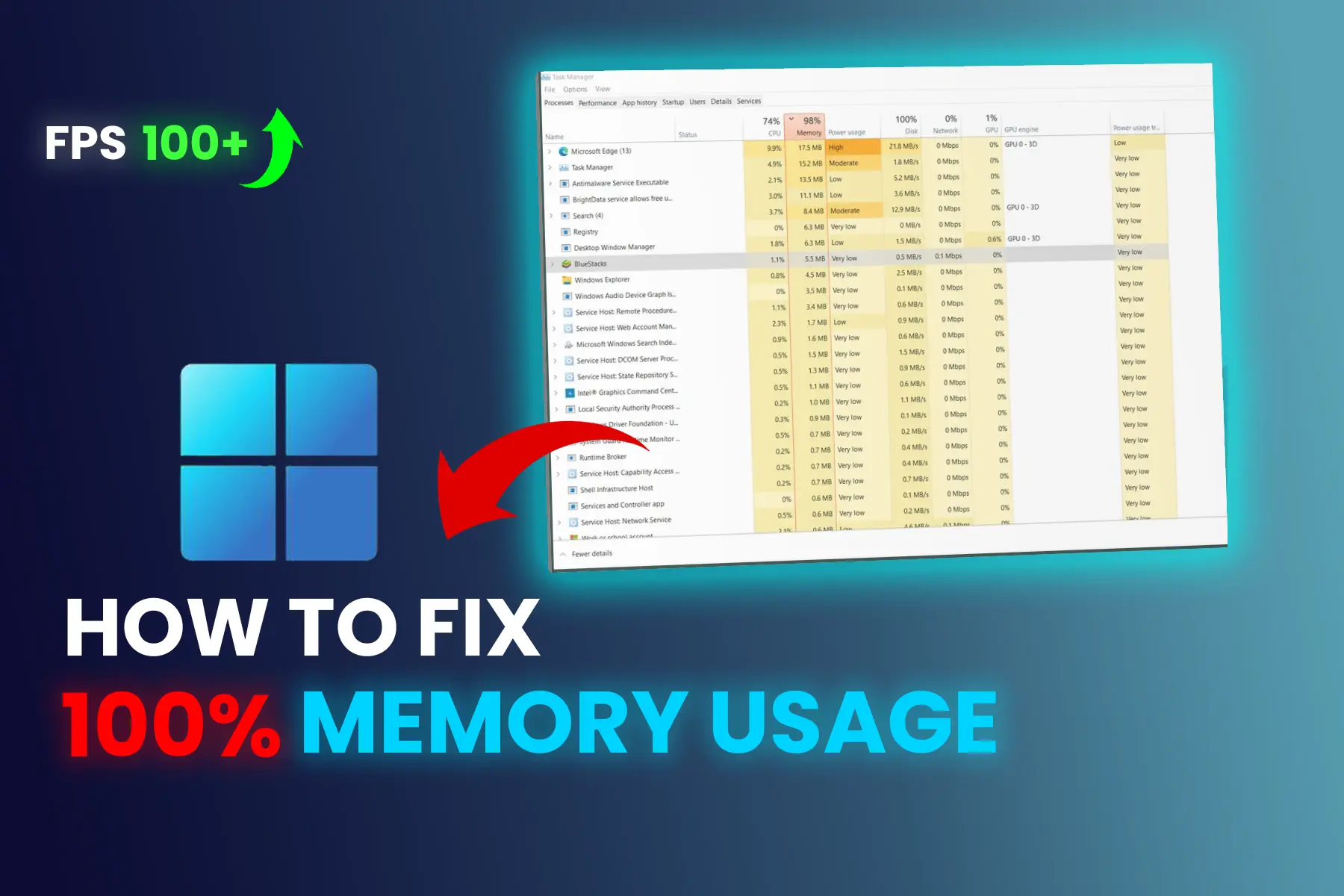
2. Fixing Performance Lag & High CPU Usage
Does your PC feel slow after the January update? Security updates sometimes trigger heavy background indexing or driver conflicts.
The Solution:
Check Task Manager: Press
Ctrl + Shift + Esc. If "System" or "Service Host" is using 100% CPU, wait for 30 minutes. Windows might be finishing background tasks.Update Your Drivers: New Windows updates often need new GPU and Chipset drivers. Visit the official website of your laptop or motherboard manufacturer.
Disable Startup Apps: Go to Task Manager > Startup Apps and disable apps you don’t need.
3. Specific Bugs: WiFi, Bluetooth, or Black Screen
Sometimes, a security patch can "break" your connections or cause a black screen on startup.
WiFi/Bluetooth not working: Go to Device Manager, right-click your network adapter, and select Uninstall Device. Restart your PC; Windows will automatically reinstall the correct driver.
Black Screen Fix: If you see a black screen, press
Win + Ctrl + Shift + B. This restarts your graphics driver instantly.
4. Should You Install the January 2026 Update?
Yes. Security updates protect you from new viruses and hacking threats. However, if your PC becomes unusable, you can "Roll Back" the update.
How to Uninstall the Update:
Go to Settings > Windows Update > Update history.
Scroll down to Uninstall updates.
Find the latest KB 5070311 update and click Uninstall.
Conclusion
The Windows 11 January 2026 update is essential for security, but bugs are common. Most issues can be fixed by running the troubleshooter or updating your drivers. If the lag is too much, don't hesitate to uninstall it and wait for a "hotfix" from Microsoft.
.webp)
.webp)
Comments 0
No comments yet
Be the first to share your thoughts!
Leave a Comment