
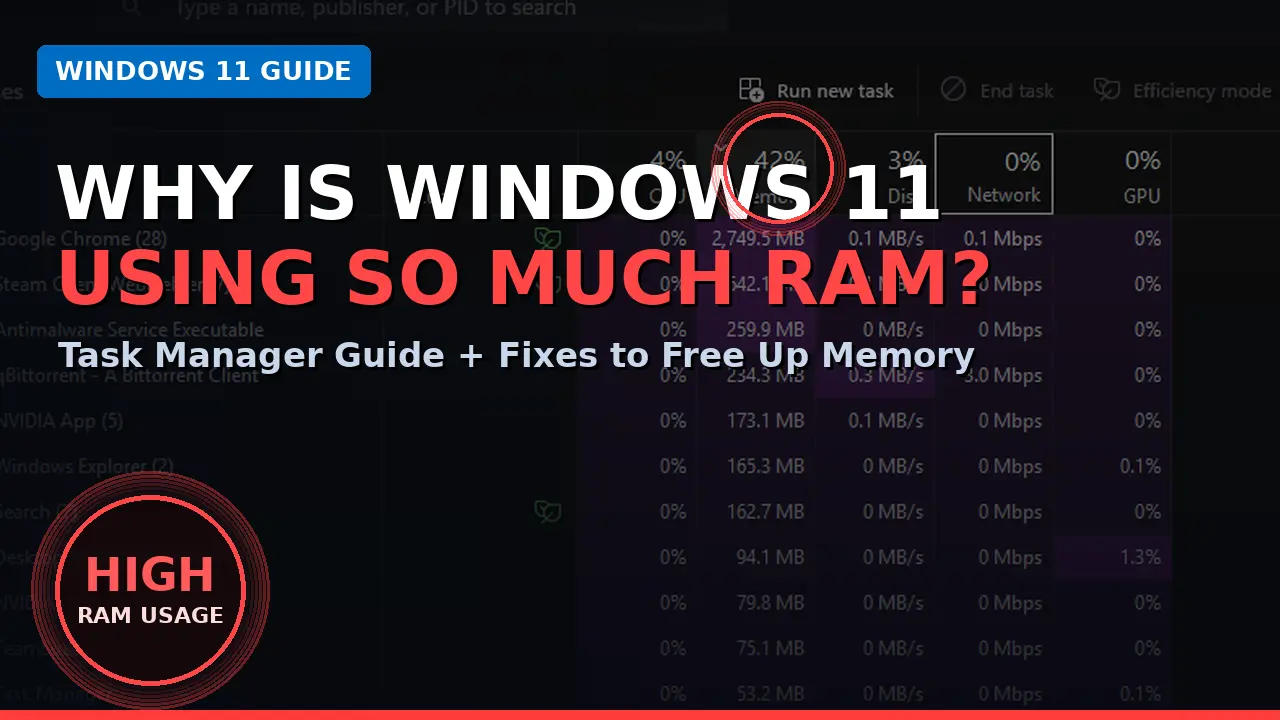
Is Windows 11 using too much RAM even when you're not doing anything demanding? High memory usage can happen because of running applications, browser tabs, startup programs, background activity, memory leaks, or simply having too little RAM for your workload.
High RAM usage does not automatically mean Windows 11 has a problem. The important question is whether the high usage is causing slowdowns, freezing, stuttering, or out-of-memory errors.
In this guide, you'll learn why Windows 11 may be using too much RAM and how to reduce unnecessary memory usage without making risky system changes.
Quick answer: Windows 11 may use too much RAM because of open applications, browser tabs, startup programs, background processes, memory leaks, or limited system memory. Open Task Manager and sort the Memory column to find which apps are using the most RAM.
What Does RAM Do in Windows 11?
RAM, or Random Access Memory, is the short-term memory your computer uses while Windows and applications are running.
For example, when you open Chrome, Photoshop, a game, or Visual Studio, those programs need RAM to store the data they are actively working with.
Windows can also use available memory for caching and other system operations. Therefore, seeing a relatively high memory percentage in Task Manager does not automatically mean something is broken.
The more important question is:
Is your computer actually experiencing performance problems?
If the answer is yes, then finding which processes are consuming memory is the right place to start.
How to Check RAM Usage in Windows 11
Before changing anything, let's find out what is actually using your memory.
Step 1: Open Task Manager
Press:
Ctrl + Shift + Esc
This opens Windows Task Manager.
Step 2: Open the Processes tab
If Task Manager opens in its simplified view, select More details.
Then select Processes.
Step 3: Check Memory usage
Look for the Memory column.
Click the Memory column to sort processes by RAM usage.
The applications using the most memory will appear at the top.
For example, you might see:
- Google Chrome
- Microsoft Edge
- Discord
- Teams
- Photoshop
- Games
- Development tools
- Background applications
Don't immediately end a process just because it uses a lot of memory. Some applications naturally require more RAM than others.
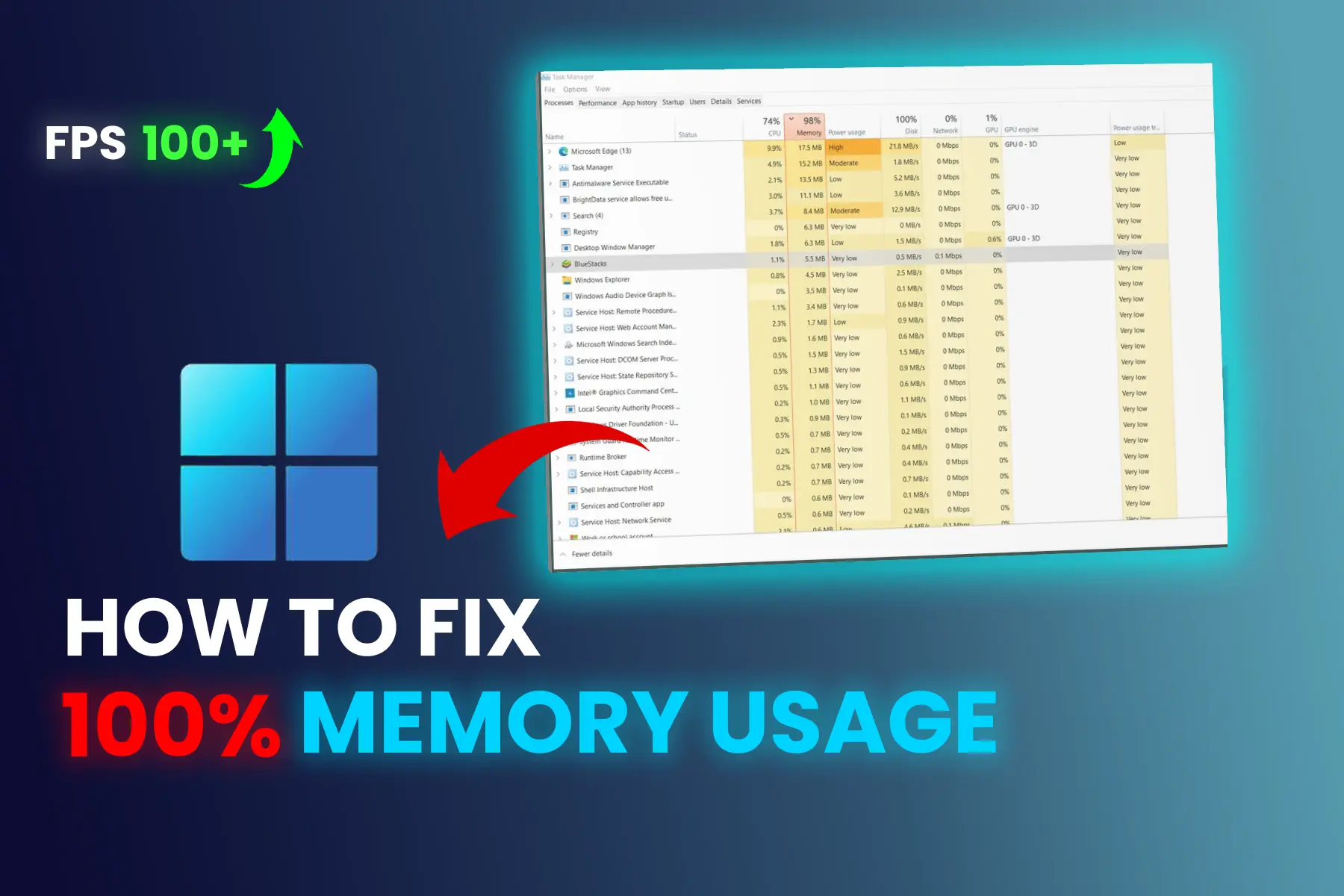
If Task Manager is specifically showing 100% memory usage on your Windows 11 PC, see our guide on [how to fix 100% RAM usage in Windows 11] for more targeted troubleshooting steps.
Why Is Windows 11 Using So Much RAM?
There isn't one single cause.
Common reasons include:
1. Too many applications are running
Having many programs open simultaneously naturally increases RAM usage.
2. Browser tabs are consuming memory
Modern browsers can use considerable memory when you have many tabs, extensions, or web applications open.
3. Background applications
Some applications continue running in the background even when you're not actively using them.
4. Too many startup applications
Some programs launch automatically when you sign in to Windows.
5. A memory-hungry application
A particular application may consume unusually large amounts of RAM.
6. Memory leaks
A poorly behaving application can sometimes continue allocating memory without properly releasing it.
7. Your PC doesn't have enough RAM for your workload
If you're running games, browsers, virtual machines, video editors, or development tools on a computer with limited RAM, high memory usage may simply be expected.
1. Close Apps You Are Not Using
This is the easiest solution.
Open Task Manager → Processes.
Sort by Memory.
If you find an application you recognize and aren't using, close it normally.
For example, if you have several programs open that you don't currently need, closing them can immediately reduce memory pressure.
Important
Don't randomly end Windows system processes.
If you're unsure what a process does, leave it alone and investigate it first.
2. Disable Unnecessary Startup Apps
Some applications automatically launch when Windows starts.
Over time, you may end up with many programs running before you even open anything yourself.
How to disable startup apps in Windows 11
- Right-click the Start button.
- Select Task Manager.
- Select Startup apps.
- Review the applications listed.
- Select an application you don't need at startup.
- Click Disable.
Task Manager's Startup apps section lets you control which applications launch automatically when you sign in to Windows.
What should you disable?
Usually, you can consider disabling unnecessary third-party applications such as:
- Game launchers you don't always use
- Chat applications you don't need immediately
- Update helpers
- Software launchers
- Other non-essential programs
Don't disable security software or important Windows components just because they appear in the list.
3. Reduce the Number of Browser Tabs
If you spend most of your day in Chrome or Edge, your browser could be one of the biggest memory users.
A browser can have many processes running simultaneously because of:
- Open tabs
- Extensions
- Web applications
- Background services
- Media-heavy websites
Instead of keeping dozens of tabs open indefinitely, close tabs you no longer need.
You can also check your browser's built-in task manager to identify individual tabs or extensions that are consuming excessive memory.
4. Disable Unnecessary Background Apps
Some applications continue performing tasks when you're not actively using them.
Windows allows you to control background permissions for supported applications through:
Settings → Apps → Installed apps
Find the application, select the three-dot menu, and choose Advanced options if available.
Under Background apps permissions, you may see options such as:
- Always
- Power optimized
- Never
Microsoft documents these controls for Windows 11 and Windows 10.
If an application doesn't need to constantly run in the background, changing its background permission can help reduce unnecessary activity.
5. Restart Your Computer
This sounds simple, but it is worth trying.
If your PC has been running for a long time, an application or background process may be behaving abnormally.
A restart clears the current session and starts Windows again from a clean state.
If your RAM usage returns to normal after restarting but gradually increases again over several hours or days, pay attention to which application is running during that period.
That can help you identify a possible memory leak or problematic application.
6. Find Apps That Keep Increasing Their RAM Usage
This is one of the most useful troubleshooting steps.
Open:
Task Manager → Processes → Memory
Then observe the applications using the most RAM.
If one application starts at a reasonable memory level but continuously grows while you're using the PC, it may be worth investigating.
You can:
- Close the application.
- Reopen it.
- Check whether the problem returns.
- Update the application.
- Check the developer's support documentation.
- Reinstall the application if necessary.
Don't assume Windows itself is responsible just because the overall Memory percentage is high.
Sometimes a single third-party application is the real cause.
7. Uninstall Programs You Don't Need
Unused software can contribute to unnecessary background activity, startup entries, and system clutter.
To review installed applications in Windows 11:
Settings → Apps → Installed apps
Look through the list and remove programs you no longer use.
You can review and remove unnecessary applications from Settings → Apps → Installed apps.
Before uninstalling anything, make sure you know what the program is.
Avoid removing unknown Windows components simply because their names look unfamiliar.
8. Check Windows and App Updates
If a particular application is consuming unusually large amounts of RAM, check whether an update is available.
Software developers regularly release updates that fix bugs, crashes, performance issues, and resource problems.
For Windows itself, keep your system updated through:
Settings → Windows Update
Also update applications that you use frequently.
If the problem started immediately after a particular software update, investigate that specific application rather than making random Windows configuration changes.
9. Check for Malware
Unexpectedly high memory usage can sometimes be associated with unwanted software or malware.
If you notice other unusual behavior such as:
- Unknown applications running
- Unexpected pop-ups
- Browser redirects
- Unusual network activity
- Programs launching without permission
- Very high resource usage when the PC is idle
run a security scan.
Use Windows Security or a reputable security product rather than downloading random “RAM optimizer” applications from unknown websites.
10. Check Your Page File / Virtual Memory
Windows also uses virtual memory through a paging file.
When physical RAM becomes limited, Windows can move some memory contents to disk.
For most users, I recommend leaving Windows to manage the paging file automatically rather than manually entering random values from internet tutorials.
There are specific situations where page-file configuration can affect memory allocation errors, but this is more advanced troubleshooting.
So don't change the page file simply because Task Manager shows high RAM usage.
11. Check Whether Your PC Has Enough RAM
Sometimes the problem isn't Windows.
It's simply that your workload has outgrown your available memory.
For example, imagine you have:
- Chrome with many tabs
- Discord
- Spotify
- Photoshop
- Visual Studio
- Several background applications
running simultaneously on a system with limited RAM.
High memory usage would be expected.
If you frequently reach very high memory usage during your normal workload, upgrading RAM may provide a much bigger improvement than repeatedly changing Windows settings.
How Much RAM Should Windows 11 Use?
There isn't one universal percentage that Windows 11 should always use.
RAM usage changes depending on:
- Installed RAM
- Open applications
- Browser tabs
- Background services
- Games
- Development software
- Virtual machines
- Video editing
- Other workloads
For this reason, don't panic simply because Task Manager shows 70%, 80%, or even higher memory usage.
Look at how the PC behaves.
If the system is responsive and applications work normally, high RAM utilization isn't necessarily a problem.
How to Know If RAM Usage Is Actually a Problem
You should investigate further if you experience several of these symptoms:
- Windows becomes noticeably slow
- Applications freeze
- Programs take a long time to open
- Games stutter
- Switching between applications becomes slow
- You see out-of-memory errors
- Memory usage remains extremely high while the PC is idle
- One application continuously consumes more RAM
- The system becomes slow after several hours of use
For a broader troubleshooting guide covering high RAM usage on both Windows 11 and Windows 10, see our guide on [high RAM usage in Windows 11 and Windows 10].
Should You Use a RAM Cleaner or Memory Optimizer?
I generally wouldn't recommend installing a random third-party “RAM cleaner” just because Task Manager shows high memory usage.
Windows already has its own memory management system.
Instead of relying on a RAM optimizer, first find out what is consuming the memory.
If Chrome is using too much RAM, investigate Chrome.
If a game is using too much RAM, investigate the game.
If a particular application continuously grows in memory usage, investigate that application.
This approach is much more useful than simply clicking a “Free RAM” button.
When Should You Upgrade Your RAM?
Consider a RAM upgrade if:
- Your computer frequently runs out of available memory.
- You regularly use demanding applications.
- You work with large projects.
- You use virtual machines.
- You edit high-resolution video.
- You play modern games while running other applications.
- You regularly keep many applications open simultaneously.
If your PC has limited RAM and your normal workload consistently pushes memory usage very high, adding RAM can be a more effective solution than trying dozens of software tweaks.
Frequently Asked Questions
Why is Windows 11 using so much RAM?
Windows 11 may use RAM for the operating system, applications, background services, caching, and other tasks. High usage isn't necessarily a problem unless it is accompanied by slow performance, freezing, errors, or other symptoms.
How do I reduce RAM usage in Windows 11?
Start by checking Task Manager and identifying the applications using the most memory. Close unnecessary applications, disable unnecessary startup apps, control background apps, update software, and investigate applications that continuously increase their memory usage.
Is 80% RAM usage bad?
Not necessarily. RAM usage depends on your installed memory and what you're doing. The important factor is whether the computer is experiencing performance problems.
Why is my RAM full when nothing is open?
Windows and background services can still use memory even when you don't have visible applications open. Startup programs and background processes can also consume RAM.
Does restarting Windows clear RAM?
Restarting the PC ends the current Windows session and starts it again, which can clear temporary memory usage from applications and processes.
Should I disable Windows services to free RAM?
Usually, no. Disabling random Windows services can cause unexpected problems. Identify the actual source of high memory usage before changing system services.
Final Thoughts
If Windows 11 is using too much RAM, don't immediately assume that you need more RAM or that Windows itself is broken.
Start with Task Manager.
Find out which applications are consuming the most memory, close programs you aren't using, review startup apps, control unnecessary background activity, and check whether a particular application keeps increasing its memory usage.
If high memory usage continues during your normal workload, your PC may simply need more RAM.
The most important thing is to identify the cause before changing advanced Windows settings.
.webp)
.webp)
Comments 0
No comments yet
Be the first to share your thoughts!
Leave a Comment