
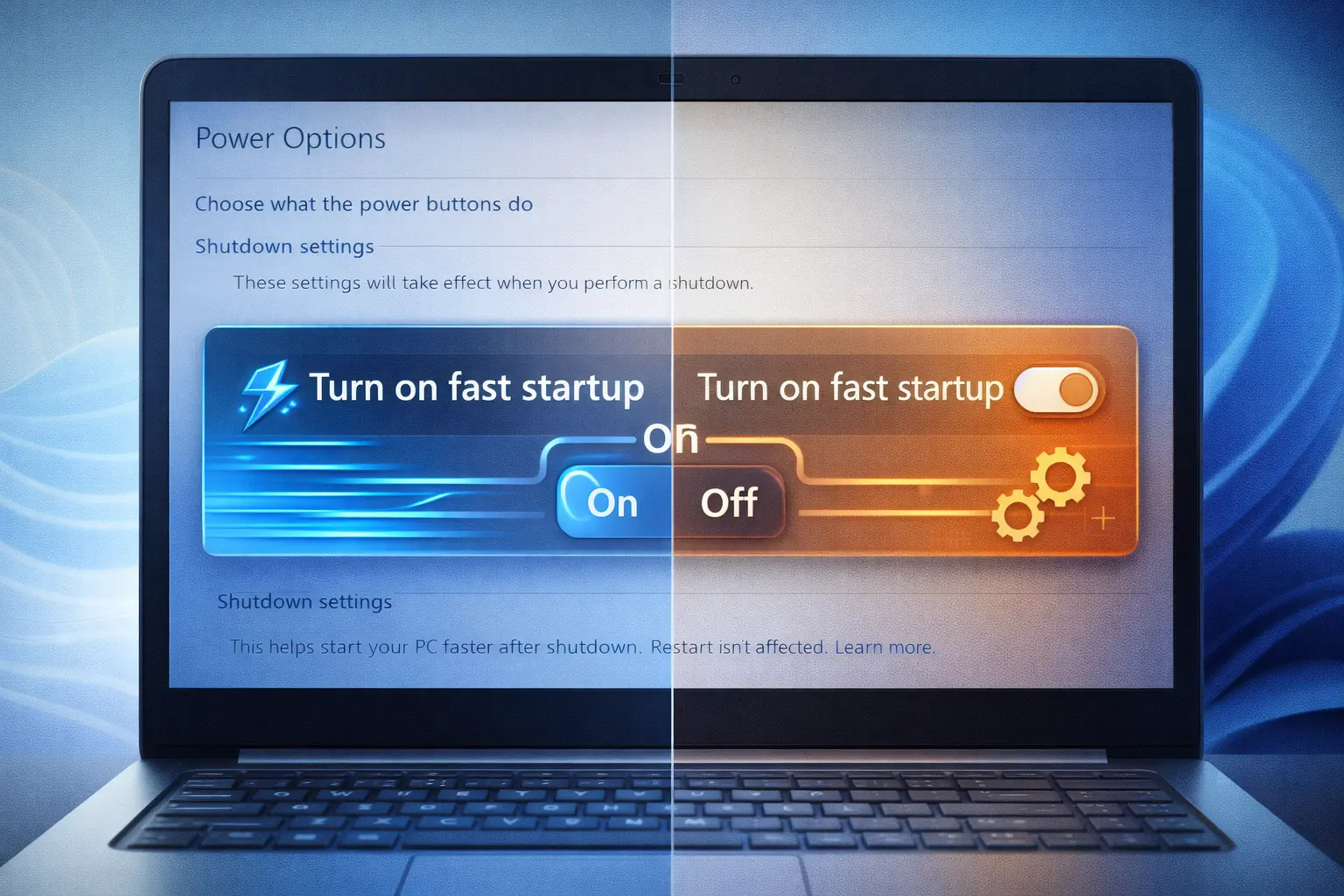
Fast Startup is a Windows 11 feature designed to make your PC start faster after a shutdown. It uses a hybrid shutdown process that saves the Windows kernel session and loaded drivers to a hibernation file instead of starting everything from scratch.
While Fast Startup can reduce startup time, it can sometimes complicate troubleshooting related to shutdowns, updates, drivers, or hardware detection.
In this guide, you'll learn what Fast Startup does, how it works, when you may want to disable it, and how to turn it off step by step in Windows 11.
What Is Fast Startup in Windows 11?
Fast Startup is a Windows feature that helps reduce the time required to start Windows after a shutdown.
Instead of performing a completely fresh boot, Windows saves the kernel session and loaded drivers to a hibernation file when you shut down the PC. During the next startup, Windows can load this saved system information rather than initializing everything from scratch.
This is sometimes described as a hybrid shutdown because it combines elements of a normal shutdown and hibernation.
Fast Startup Does Not Affect Restart
One important detail is that Fast Startup applies to shutdown and the following startup.
A normal Restart performs a full boot cycle and does not use Fast Startup.
This is why restarting your PC can sometimes resolve a problem even when shutting down and turning the PC back on does not.
What Happens When Fast Startup Is Enabled?
When Fast Startup is enabled and you shut down Windows, the operating system does not simply save everything exactly as it is.
Instead, Windows:
- Logs off the current user session.
- Saves the Windows kernel session to the hibernation file.
- Saves information about loaded drivers.
- Performs a hybrid shutdown.
- Uses the saved system state during the next startup.
This allows Windows to initialize the system more quickly after a shutdown.
The exact startup improvement depends on the hardware and system configuration, so the difference can be small on some PCs and more noticeable on others.
Advantages of Fast Startup
Fast Startup can be useful for users who frequently shut down their computers and want Windows to start more quickly.
Faster Startup After Shutdown
The main purpose of Fast Startup is to reduce the time Windows needs to start after a shutdown by reusing saved system information.
Convenient for Everyday Use
If your PC works normally, Fast Startup can make regular shutdown and startup cycles more convenient.
Can Be Useful on Some Older PCs
Older systems, particularly those using slower storage, may benefit from reduced startup processing.
However, the actual improvement varies between computers.
Disadvantages of Fast Startup
Fast Startup is generally useful, but there are situations where disabling it can help with troubleshooting.
Some Update Problems
Some Windows updates may require a full shutdown and startup cycle. Fast Startup can sometimes interfere with that process because shutdown uses a hibernation-based system state.
If an update appears to require a complete shutdown, restarting Windows or temporarily disabling Fast Startup can help with troubleshooting.
Driver or Hardware Detection Issues
Because Fast Startup restores part of the previous system state, certain driver or hardware-related problems may persist after a shutdown.
A full Restart performs a fresh boot cycle and can sometimes resolve these issues.
Dual-Boot Systems
If Windows is installed alongside another operating system, Fast Startup can create problems because Windows may leave some system state associated with the Windows installation.
If you use a dual-boot configuration, disabling Fast Startup can make troubleshooting and filesystem access easier.
Troubleshooting Shutdown Problems
When diagnosing shutdown, startup, or hardware problems, disabling Fast Startup removes the hybrid shutdown behavior and allows you to test a more traditional shutdown/startup process.
When Can Disabling Fast Startup Help?
You may want to temporarily disable Fast Startup if you are troubleshooting:
- Windows shutdown problems
- Startup or boot issues
- Driver problems after shutdown
- Hardware that is not detected correctly
- Certain Windows Update problems
- Dual-boot issues
- Problems that disappear after using Restart but return after shutdown
Disabling Fast Startup is best treated as a troubleshooting step, not something every Windows 11 user needs to do.
If your PC works normally, there is usually no reason to disable it simply for the sake of changing the setting.
How to Disable Fast Startup in Windows 11
You can disable Fast Startup through the classic Control Panel.
Follow these steps carefully.
Step 1: Open Control Panel
- Click the Start button.
- Type Control Panel.
- Open the Control Panel application.
Step 2: Open Power Options
Inside Control Panel:
- Click Hardware and Sound.
- Select Power Options.
This section contains Windows power and shutdown settings.
Step 3: Choose What the Power Buttons Do
On the left side of the Power Options window, click:
Choose what the power buttons do
This opens the settings related to shutdown and power-button behavior.
Step 4: Unlock the Shutdown Settings
Some shutdown options may be unavailable until you unlock them.
Click:
Change settings that are currently unavailable
Windows may ask for administrator permission.
Step 5: Turn Off Fast Startup
Under Shutdown settings, look for:
Turn on fast startup (recommended)
Uncheck the box.
Then click:
Save changes
Fast Startup is now disabled.
How to Check If Fast Startup Is Disabled
You can verify the setting from the same Control Panel location.
Go to:
Control Panel → Hardware and Sound → Power Options → Choose what the power buttons do
Then check the Turn on fast startup (recommended) option.
If the checkbox is unchecked, Fast Startup is disabled.
Important: Restart Is Not a Fast Startup Test
Remember that Fast Startup does not apply to Restart.
If you want to test the behavior after changing the setting, use:
Shut down → Turn the PC back on
A normal Restart already performs a full boot cycle, so it cannot be used to determine whether Fast Startup is active.
What Happens After You Disable Fast Startup?
After disabling Fast Startup, Windows will perform a normal shutdown instead of using the hybrid Fast Startup shutdown process.
The next startup may take slightly longer because Windows needs to initialize the system normally instead of loading the saved kernel state.
Your personal files and installed applications are not removed.
Disabling Fast Startup does not uninstall drivers or change your Windows installation.
How to Enable Fast Startup Again
If disabling Fast Startup does not solve your problem, you can easily turn it back on.
Go to:
Control Panel → Hardware and Sound → Power Options → Choose what the power buttons do
Then:
- Click Change settings that are currently unavailable.
- Check Turn on fast startup (recommended).
- Click Save changes.
Fast Startup will be enabled again.
Fast Startup vs Restart: What's the Difference?
This is one of the most important things to understand when troubleshooting Windows.
Fast Startup
Fast Startup affects what happens when you shut down Windows and then turn the PC back on.
Windows saves part of the system state to the hibernation file to reduce startup time.
Restart
When you select Restart, Windows performs a full shutdown and boot cycle.
Fast Startup does not apply to Restart.
This means that if a problem disappears after Restart but comes back after shutting down and turning the PC on again, Fast Startup may be worth investigating.
Does Disabling Fast Startup Improve PC Performance?
Disabling Fast Startup is not a general performance optimization.
It mainly changes how Windows handles shutdown and startup.
You should not expect higher FPS, faster applications, or better gaming performance simply because Fast Startup is disabled.
If you're experiencing gaming stuttering or general performance problems, other factors such as CPU usage, RAM, GPU performance, storage activity, temperatures, and network conditions may be responsible.
If high disk activity is affecting gaming performance, see our guide on How to Fix 100% Disk Usage on Windows 10/11.
Should You Keep Fast Startup Enabled?
For most users whose computers are working normally, there is no need to disable Fast Startup.
It can reduce the time required to start Windows after a shutdown.
However, if you're troubleshooting shutdown, startup, update, driver, hardware, or dual-boot problems, temporarily disabling Fast Startup can be useful.
A good approach is to change the setting, test the system, and re-enable it if disabling Fast Startup does not make a difference.
Frequently Asked Questions
Is it safe to disable Fast Startup in Windows 11?
Yes. Disabling Fast Startup does not remove your files or uninstall applications.
It simply changes how Windows handles shutdown and the next startup.
Will disabling Fast Startup slow down my PC?
It can make startup after a shutdown take slightly longer because Windows performs a normal boot instead of loading the saved system state.
It does not normally reduce the performance of Windows after the PC has started.
Does Fast Startup affect Restart?
No.
Fast Startup applies to shutdown and the following startup. A normal Restart performs a full boot cycle.
Should I disable Fast Startup permanently?
Not necessarily.
If your PC works normally, you can leave Fast Startup enabled.
If you're troubleshooting shutdown, update, driver, or hardware problems, try disabling it temporarily and see whether the behavior changes.
Can I enable Fast Startup again later?
Yes.
You can enable it again from:
Control Panel → Hardware and Sound → Power Options → Choose what the power buttons do
Then select Turn on fast startup (recommended) and save the changes.
Does disabling Fast Startup improve gaming performance?
Not directly.
Fast Startup mainly affects shutdown and startup behavior. It does not normally increase FPS or improve in-game performance.
Why does Restart sometimes fix a problem that shutdown doesn't?
Restart performs a full boot cycle, while Fast Startup can use a saved system state after shutdown.
If a problem disappears after Restart but returns after shutdown, Fast Startup may be one factor worth testing.
Does Fast Startup use disk space?
Yes.
Fast Startup relies on the Windows hibernation system and its hibernation file. The amount of storage used depends on the system configuration.
Can Fast Startup cause problems with dual-boot systems?
It can.
Because Windows may save system state during shutdown, dual-boot configurations can experience filesystem or access problems. Disabling Fast Startup is commonly used when troubleshooting these situations.
Final Thoughts
Fast Startup is a Windows 11 feature designed to reduce startup time after a shutdown by saving part of the Windows system state to the hibernation file.
For most users, it can be left enabled if Windows is working normally.
However, if you're experiencing shutdown problems, driver issues, hardware detection problems, certain update issues, or dual-boot conflicts, disabling Fast Startup can be a useful troubleshooting step.
To disable it, open:
Control Panel → Hardware and Sound → Power Options → Choose what the power buttons do → Change settings that are currently unavailable
Then uncheck:
Turn on fast startup (recommended)
Save the changes and test your system.
If disabling Fast Startup does not change the problem, you can safely enable it again.
.webp)
.webp)
Comments 0
No comments yet
Be the first to share your thoughts!
Leave a Comment