
Are you using a Samsung Galaxy phone and feeling that your battery life has significantly dropped since installing the Android 15 update? You are definitely not alone. With every major OS update, battery life often takes a temporary hit as background processes optimize themselves for the new system.
However, there are simple and highly effective methods you can use to stabilize your device and quickly restore power efficiency. Here are the top 7 fixes for Android 15 battery drain on Samsung phones.
1. 🔍 Root Cause Analysis: The Crucial First Step After Updating
After installing Android 15, it takes several days (usually 2-3 days) for data and apps to fully optimize for the new OS.
Reboot Twice: Even if the phone restarted automatically after the update, manually restart it two more times. This helps all background processes synchronize correctly and resolves minor system glitches.
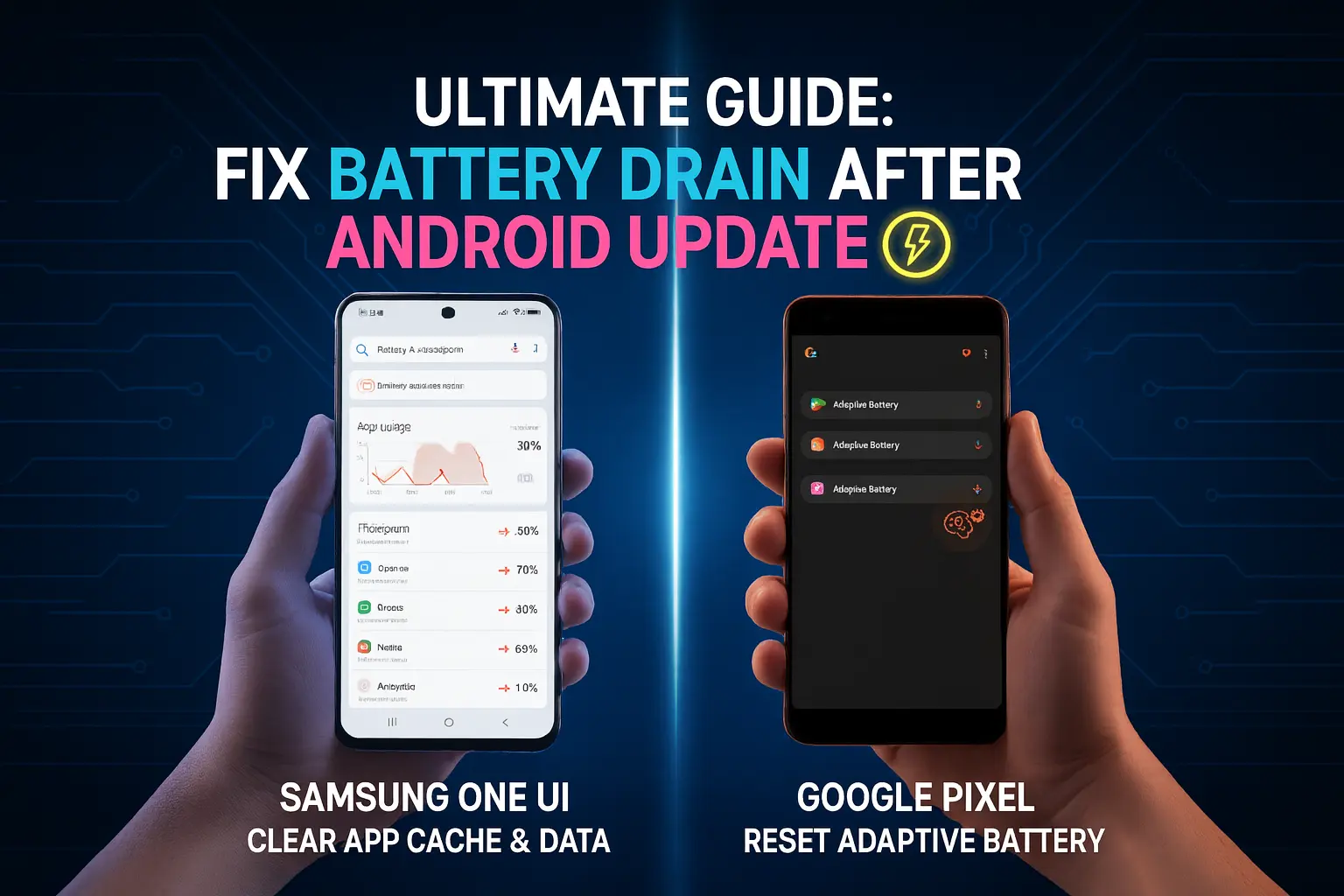
Check Background Usage: Go to Settings > Battery and Device Care > Battery and identify which apps consumed the most power in the last 24 hours. These are your primary suspects.
2. ⚡️ Properly Configuring Power Saving Mode
The Power Saving Mode shouldn't just be an emergency tool. Configuring it correctly can significantly boost daily battery life.
Adaptive Power Saving: Enable this option inside Settings > Battery. This automatically adjusts the CPU speed, screen refresh rate, and Always-On Display (AOD) based on your usage patterns.
Limit CPU Speed (Optional): If the drain is severe, manually limit the CPU speed (in Power Saving Mode settings). This sacrifices a tiny bit of responsiveness for major battery gains.
3. 📉 Disable Adaptive Refresh Rate Temporarily
While features like the Adaptive Refresh Rate (1Hz to 120Hz) on newer Samsung models (S24, S25) are designed to save battery, specific bugs in the initial Android 15 rollout can make them ineffective.
Go to Settings > Display > Motion Smoothness.
Switch to "Standard" (60Hz). This will slightly reduce the smoothness of your screen but can drastically improve battery life until Google and Samsung release a patch.
4. 🌙 Send Unused Apps to "Deep Sleep"
Apps you rarely use often run background checks and consume battery power unnecessarily.
Navigate to Settings > Battery > Background Usage Limits.
Enable "Put unused apps to sleep".
Manually select apps you use infrequently (like shopping apps or old games) and add them to the "Deep Sleeping Apps" list. These apps will perform zero background processes until you open them.
5. 🗑️ Clear Cache for Problematic Apps
If an app (e.g., Chrome, Facebook) is using excessive battery post-update, its old cache might be the problem.
Go to Settings > Apps and select the problem app.
Choose Storage and tap "Clear Cache". Never select "Clear Data" (this will wipe your login information and settings).
6. 🖼️ Adjust Always-On Display (AOD) and Use Dark Mode
AOD Optimization: If your AOD shows bright clocks or intricate images, turn it off or set it to "Tap to Show" instead of "Always Show."
Embrace Dark Mode: Samsung phones with AMOLED screens benefit significantly from Dark Mode. When pixels display black, they are turned off, which can reduce power consumption by 15% to 20%.
7. 🔌 Turn Off Fast Charging (As a Last Resort)
If your phone overheats excessively while charging, it can impact the long-term health (longevity) of the battery.
Go to Settings > Battery > More battery settings.
Temporarily disable the "Fast charging" option. Slower charging generates less heat, which is healthier for the battery.

.webp)
Comments 0
No comments yet
Be the first to share your thoughts!
Leave a Comment