
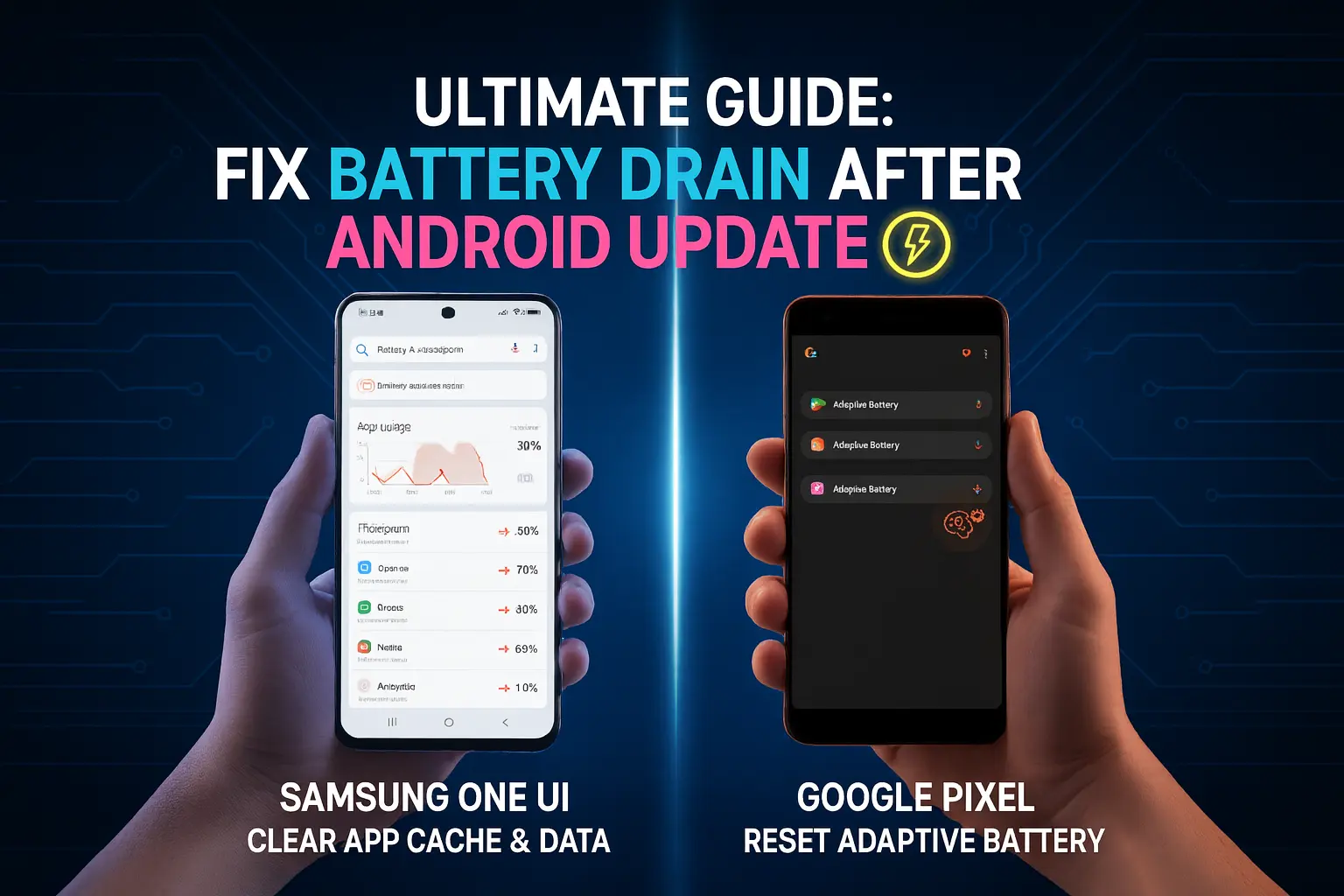
It’s one of the most frustrating experiences for any smartphone user: you’ve just updated your Android phone to the latest version, expecting better performance, only to find your battery life plummeting. Whether you own a Samsung Galaxy, a Google Pixel, or any other Android device, post-update battery drain is a common issue, but one that can usually be fixed with a few proven steps.
This guide will walk you through the ultimate solutions to restore your battery life, focusing on methods that work across various Android devices, especially Samsung and Pixel phones.
Why Does My Phone Battery Drain After an Update?
Software updates, while essential for security and new features, can sometimes disrupt the delicate balance of your phone's power management. Here are the main culprits:
App Cache & Glitches: Apps might not be fully optimized for the new OS version, causing them to run inefficiently in the background and consume more power. Old cached data can also conflict with the new system.
Adaptive Battery Reset: Android's "Adaptive Battery" feature learns your usage patterns. After an update, this learning process often resets, making the system temporarily less efficient at managing power.
Increased Background Activity: New features or updated system processes might be running more often in the background, consuming extra battery.
Google Play Services: This critical component often gets a significant update, which can sometimes lead to temporary battery spikes.
The Ultimate Fixes: Step-by-Step
Don't panic! Most battery drain issues after an update are temporary and can be resolved without a factory reset.
Method 1: Clear App Cache & Data (Most Effective)
This is often the quickest way to fix apps misbehaving after an update.
Identify Power-Hungry Apps:
Go to Settings > Battery and device care (or just Battery) > Battery usage.
Look for apps that show unusually high usage after the update, especially if you haven't used them much.
Clear Cache & Data for Problematic Apps:
For each problematic app: Go to Settings > Apps > [Select the App] > Storage.
Tap "Clear cache."
If the issue persists, tap "Clear data" (be aware this will log you out of the app and delete any local app data, like saved games or settings).
Repeat for All Frequently Used Apps (Optional but Recommended):
Consider clearing the cache for apps you use daily (social media, messaging, browser). This ensures a fresh start with the new OS.
Method 2: Reset Adaptive Battery / Optimize Settings
Give your phone a fresh start in learning your battery habits.
Reset Adaptive Battery (Pixel/Stock Android):
Go to Settings > Battery > Adaptive preferences (or Adaptive Battery).
Turn "Adaptive Battery" OFF, then reboot your phone, then turn "Adaptive Battery" ON again. This forces the system to relearn.
Optimize Battery Usage (Samsung Galaxy):
Go to Settings > Battery and device care > Battery > Power saving.
Ensure "Adaptive power saving" is enabled.
Check "Limit usage for apps on home and apps screens" for deeper optimization.
Deep Sleeping Apps (Samsung Galaxy):
Go to Settings > Battery and device care > Battery > Background usage limits.
Place apps you rarely use but don't want to uninstall into "Deep sleeping apps." These apps will not run in the background.
Method 3: Check for System Updates (Post-Fixes)
Sometimes, the initial update has a bug that's quickly patched.
Check for Minor Updates: Go to Settings > Software update > Download and install. Manufacturers often push out small "bug fix" updates shortly after a major OS release.
Method 4: Optimize Display Settings
The screen is often the biggest battery consumer.
Reduce Screen Brightness: Lower your brightness or enable "Adaptive brightness."
Reduce Screen Refresh Rate (if applicable): If your phone has a 120Hz or higher display, temporarily switch it to 60Hz or "Adaptive" mode in Settings > Display > Motion smoothness (for Samsung) or Smooth Display (for Pixel).
Use Dark Mode: Enable Dark Mode (especially on OLED screens) in Settings > Display to save significant battery.
Method 5: Network & Location Settings
These can drain battery even when the screen is off.
Turn Off Wi-Fi/Bluetooth Scanning:
Go to Settings > Location > Location services.
Turn off "Wi-Fi scanning" and "Bluetooth scanning." These constantly look for networks/devices even when not connected.
Disable "Mobile data always active" (Developer Options):
Go to Settings > About phone > Software information and tap "Build number" 7 times to enable Developer Options.
Go to Settings > Developer Options and find "Mobile data always active." Turn this off.
When to Consider a Factory Reset
A factory reset should be a last resort. If, after trying all the above methods for 2-3 days, your battery drain is still severe and affecting daily use, a factory reset might be necessary. Always back up your data before performing a factory reset.

.webp)
Comments 0
No comments yet
Be the first to share your thoughts!
Leave a Comment